

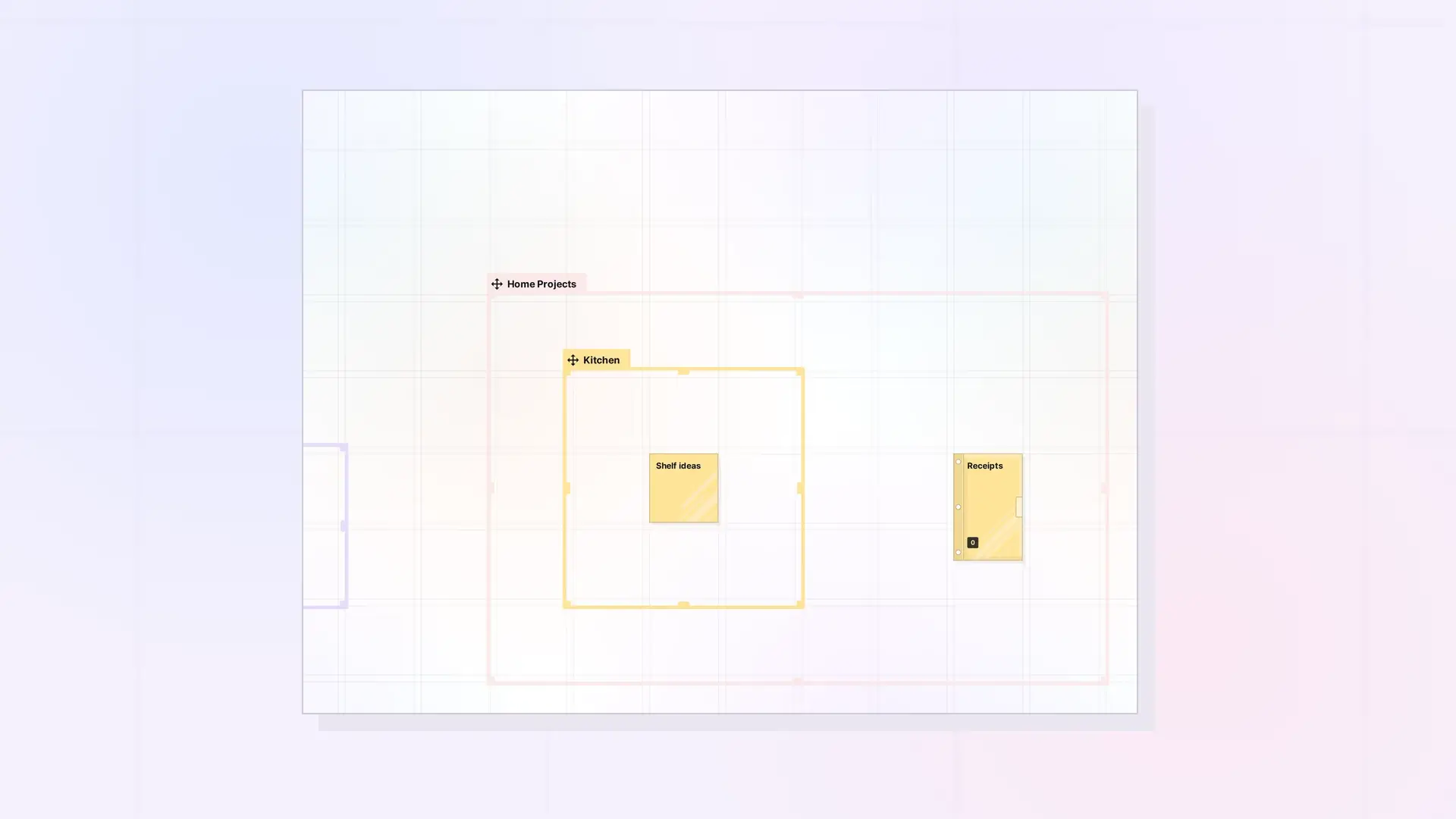
Drag a fence by its name tab to move it. Everything inside it moves along, keeping the same layout, including binders and fences nested inside it.
Move a Fence Step by Step
- Find the fence’s name tab on its top edge.
- Drag the tab to the new spot on your workspace.
- Let go. The fence and its contents land in the new place with the same arrangement.
What Moves Along
- Every item whose center is inside the fence.
- Binders inside the fence, with everything in them.
- Fences nested inside the fence, with their contents.
Shared Fences and Overlaps
Items stay in a shared fence by default. If another fence that overlaps your shared fence is moved with its contents, items that are also in your shared fence stay put. If you let them go with the other fence, the app asks first, and they leave your shared fence for everyone. See Sharing a Fence: Give Others a Whole Zone of Your Desk.
Where you place a fence someone shared with you is your own choice and does not change anyone else’s desk.
Move a Fence to Another Workspace
To move a fence and its contents to a different workspace, see Move Items Between Workspaces.
For Developers
The Opal REST API has a route that moves a fence with everything in it. See Fences API: Add Items, Read Children, and Move a Fence.
Next Steps
FAQ
Can I move the fence without its items?
Items move with the fence when you drag it by its tab. To leave an item behind, drag it out of the fence first.
Does moving my copy of a shared fence move it for others?
No. Each person places their own copy on their own desk. The layout inside the fence is the same for everyone.

