

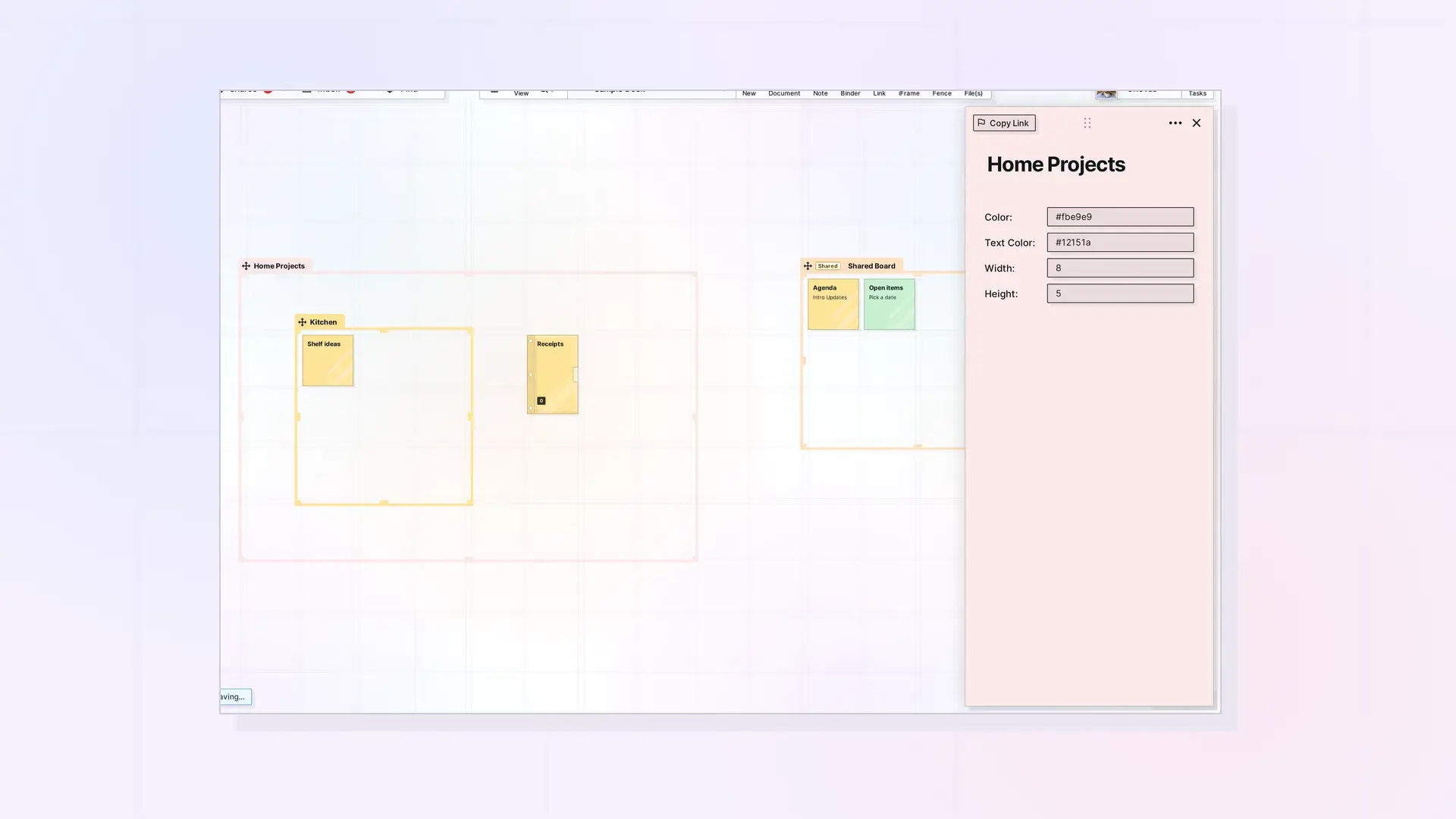
Click a fence’s name tab to open its side panel. There you can change the fence’s title and description, its Color, and the Text Color used for its name.
Rename a Fence
- Click the fence’s name tab to open its side panel.
- Click the title and type the new name.
- Change the description the same way if you want.
Change a Fence’s Colors
- Click the fence’s name tab to open its side panel.
- Pick a new Color: for the fence.
- Pick a Text Color: for the name on its tab. Choose one that stays readable on the fence color.
For more on colors across item types, see Change the Color of Notes, Binders, and Fences.
Color Ideas
- One color per kind of zone, for example teal for active work and gray for reference.
- One color per project, matching the colors of the notes inside it.
- A bright color for a “To sort” fence so it stands out when zoomed out.
Shared Fences
Changing a shared fence’s title or colors changes them for everyone. People you share with can change titles only if they have Edit Titles, and colors only with Edit Colors. See Share Roles and Permissions Explained.
Next Steps
- Resize a Fence
- Organize a Workspace with Fences: Layout Ideas
- Change the Color of Notes, Binders, and Fences
FAQ
Can I set the colors when I create the fence?
Yes. The New panel has Color and Text Color for fences. See Create a Fence.
Do the colors of the items inside change too?
No. Each item keeps its own colors.

