

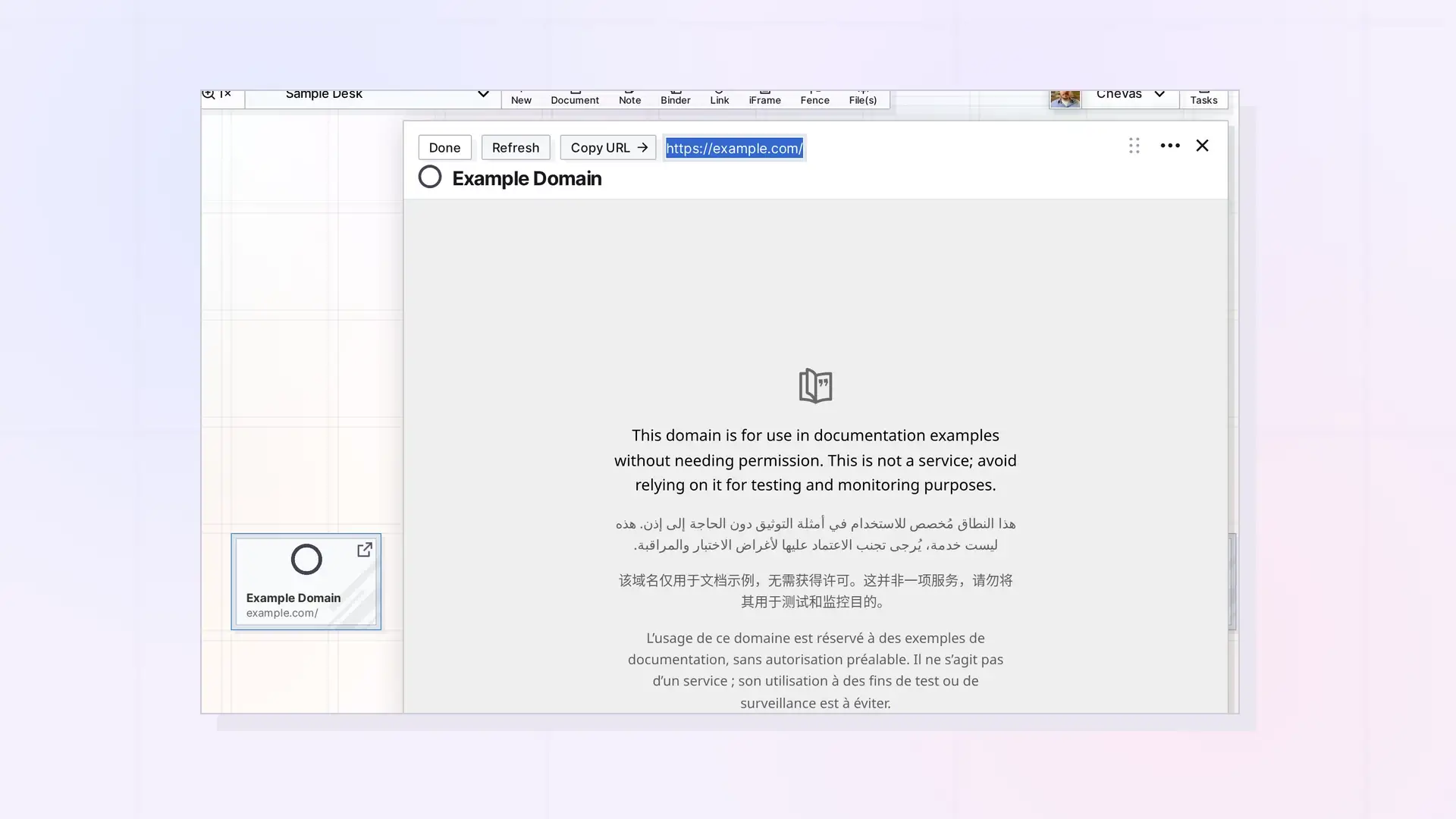
To change an iFrame’s web address, open the iFrame, click Edit URL, type or paste the new address, and click Done. The page loads the new address right away.
Change the URL Step by Step
- Click the iFrame on your workspace to open its page.
- Click Edit URL under the title. The address becomes editable.
- Replace the address with the full new one, starting with https://.
- Click Done.
Refresh and Copy URL
- Refresh reloads the title and description from the web page. If the page has no title, the iFrame is renamed Untitled, so rename it afterward if you need to.
- Copy URL copies the web address so you can paste it in a browser tab or a message.
Who Can Change the URL
The owner can always change it. People you share the iFrame with need edit permission. See Share Roles and Permissions.
Next Steps
FAQ
Does changing the URL change the title?
Click Refresh to read the new page’s title. You can also rename the iFrame by clicking its title.
Can I undo a URL change?
Click Edit URL again and paste the old address.

