

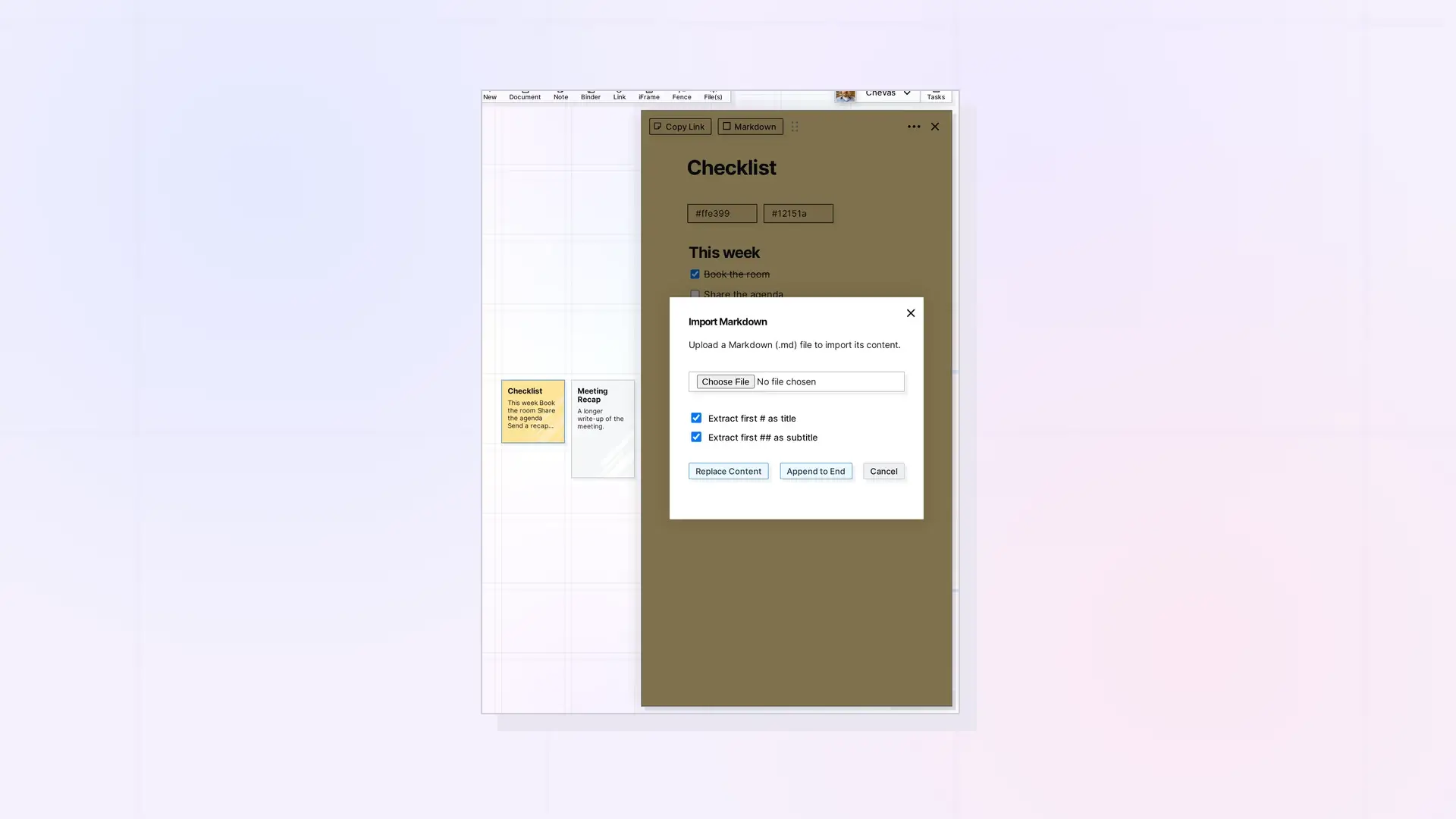
You can fill a note from a Markdown (.md) file. Open the note, choose Import Markdown in the ••• menu, pick the file, and choose whether it replaces what is in the note or goes at the end.
Import a Markdown File
- Click the note to open its page.
- Click the ••• menu and choose Import Markdown. The Import Markdown dialog opens.
- Choose your .md file.
- Choose the options:
– Extract first # as title uses the file’s first # heading as the note’s title.
– Extract first ## as subtitle uses the first ## heading as the subtitle.
- Click Replace Content to swap the note’s content for the file, or Append to End to add the file after what is already there.
Click Cancel to close the dialog without importing.
Before You Replace
Replace Content removes the note’s current content. If you might need it, export the note first. See Duplicate, Pop Out, and Export a Note.
Next Steps
- Markdown Mode: Write, Import, and Export Markdown in Opal Documents
- Write in a Note: The Same Editor in a Smaller Page
FAQ
What kind of file can I import?
A Markdown file with the .md extension.
Can I add a file without losing what is already in the note?
Yes. Click Append to End instead of Replace Content.

