

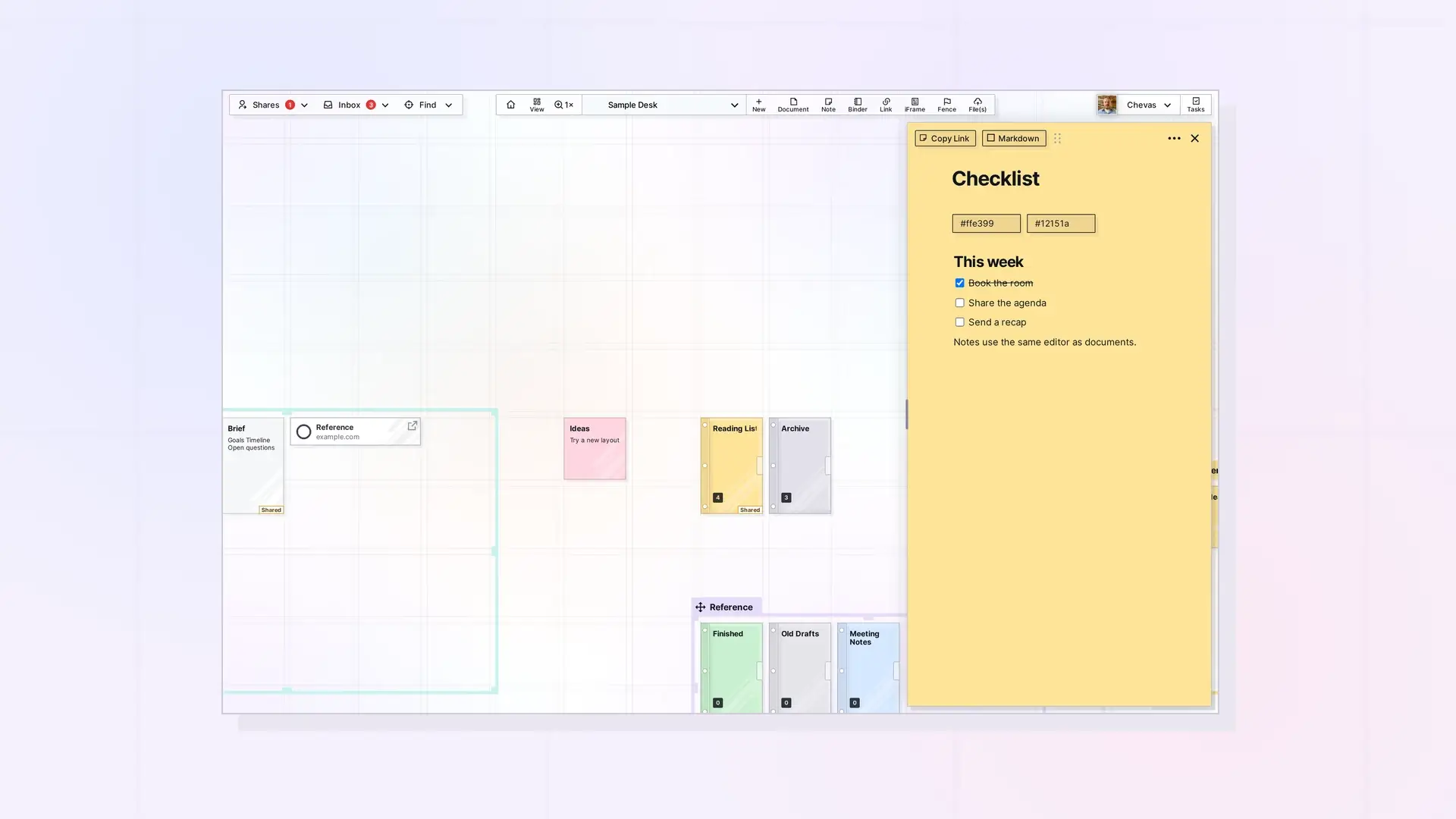
A note is an Opal item that looks like a sticky note on your workspace and opens into the full block editor. It takes up less room on the grid than a document, which makes it a good fit for quick capture and for information you want to see at a glance. Use a document when you are writing something long.
What a Note Looks Like on the Grid
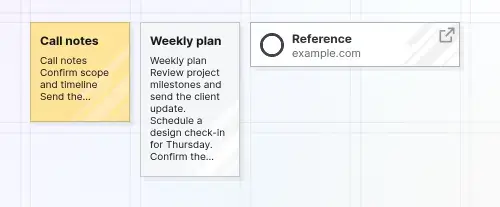
On the grid, a note looks like a sticky note that shows its title and the first lines of its text. At 100% zoom a note is 100 x 100 pixels, which is one grid square. A document is 100 x 155 pixels. Notes start with a default color that you can change, and Change the Color of Notes, Binders, and Fences shows how.
What a Note Can Contain
Open a note and you get the same block editor you use in a document: headings, lists, checklists, tables, images, code, and more. Opal Block Types Cheat Sheet: Every Block and How to Insert It lists every block. Like a document, a note can hold item links, be published, and be shared.
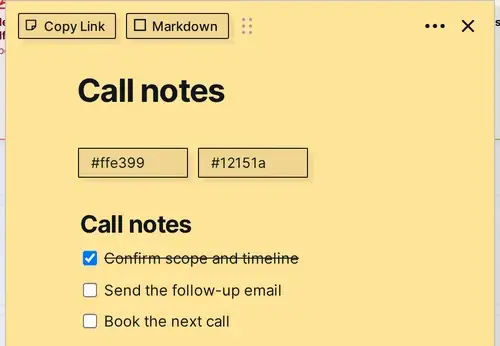
An open note is narrower than a document page: roughly half as wide, about 490 px compared with 840 px for a document.
Notes vs Documents
| Note | Document | |
|---|---|---|
| Look on the grid | A sticky note | A faint, light gray page, like a sheet of paper |
| Size at 100% zoom | 100 x 100 px | 100 x 155 px |
| Block editor | Yes | Yes |
| Item links, sharing, publishing | Yes | Yes |
| Best for | Quick capture and status you want to glance at | Plans, procedures, meeting notes, and other long writing |
Create a Note
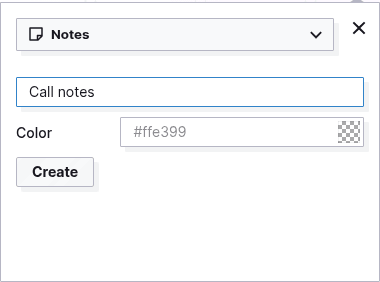
Click + New, choose Notes from the type dropdown, type a title in the Enter a title box, then click Create. The title is optional: if you leave it empty, the note is called Untitled. The panel also has a Color box if you want to pick a color first, but there is no description box. The new note appears on a grid square near the middle of your screen and its page view opens straight away.
Creating Items in Opal: Your First Few explains the other ways to create items.
When to Convert or Move Content
The ••• menu on a note has no option that turns it into a document. If a note outgrows its size, create a document and copy the content from the note into it. Start with a note when you are unsure. It is easy to give the idea more room later.
Next Steps
- Change a note’s color: Change the Color of Notes, Binders, and Fences
- Learn how documents work: The Basics of Opal Documents
- See all item types: What Are Opal Items
- Create items: Creating Items in Opal: Your First Few
- Read the blog guide: the sticky note app for business
FAQ
What is the difference between a note and a document in Opal?
Both use the full block editor. A note is a sticky note, 100 x 100 pixels on the grid, for quick capture. A document is a taller page, 100 x 155 pixels, for long writing.
Can a note have images and tables?
Yes. Notes use the same block editor as documents, so you can add images, tables, checklists, and code.
Can I turn a note into a document?
Not with a menu option. Create a document and copy the note’s content into it.

