

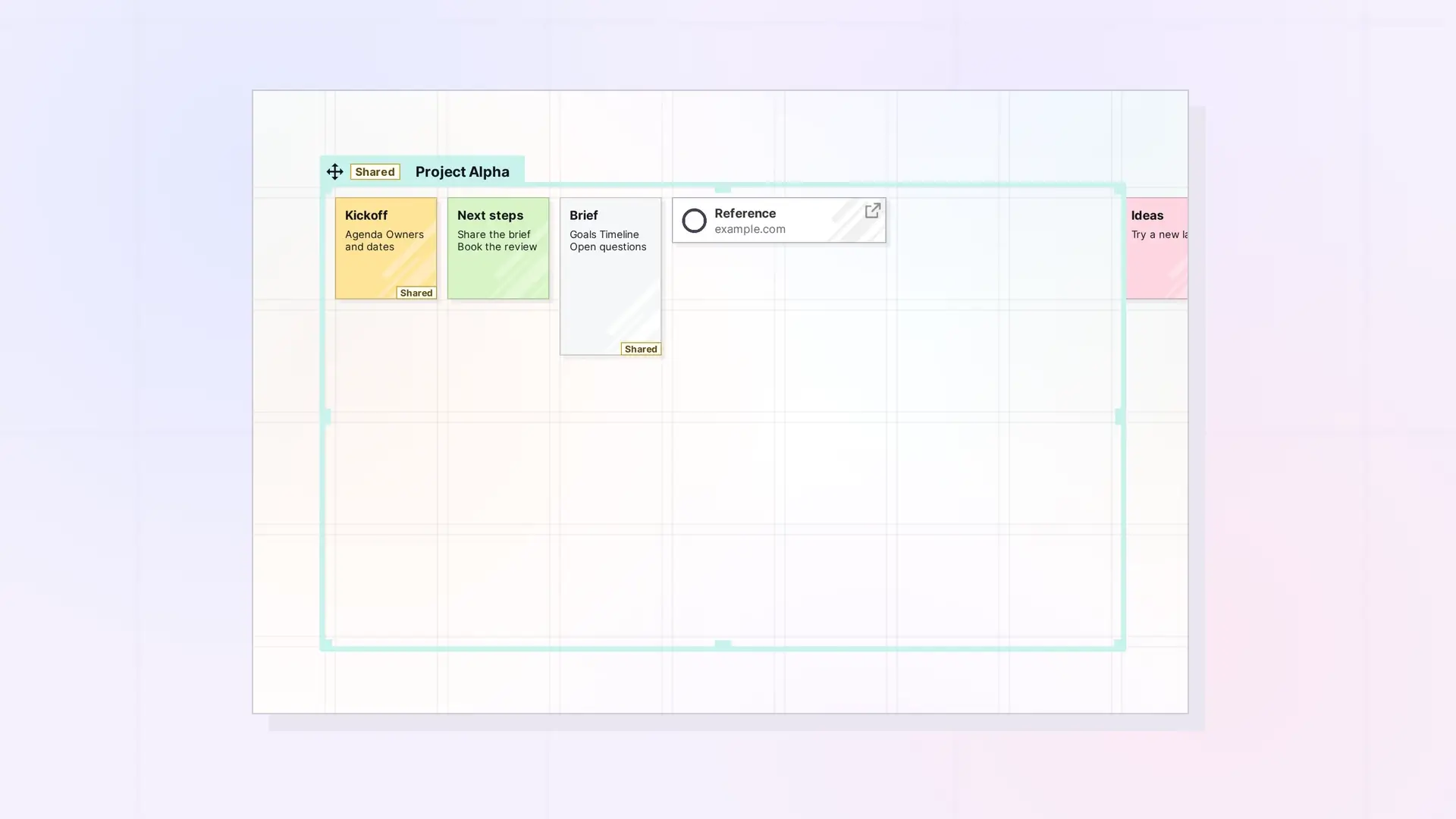
You can resize a fence in two ways: drag one of its edges or corners on the grid, or type a new Width and Height in its side panel. Sizes are in grid squares, from 1 to 30 in each direction.
Drag to Resize
- Hover over an edge or a corner of the fence until the resize cursor appears.
- Drag to make the fence larger or smaller.
- Let go. The fence snaps to the grid.
You can drag the top, bottom, left, and right edges, and the top-right, bottom-right, and bottom-left corners.
Type an Exact Size
- Click the fence’s tab to open its side panel.
- Change Width and Height. Each accepts a value from 1 to 30.
Resizing a Shared Fence
- Resizing a shared fence changes it for everyone it is shared with.
- A shared fence cannot be made smaller than what is in it.
- Moving or resizing a shared fence does not pull in items it then covers.
- People you share with can resize the fence only if they have both Edit and Resize. See Share Roles and Permissions Explained.
For Developers
A fence’s width and height are fields you can update through the Opal REST API. See Fences API: Add Items, Read Children, and Move a Fence.
Next Steps
FAQ
Why can I not make my shared fence smaller?
A shared fence cannot be made smaller than what is in it. Move some items out first, then shrink it.
What is the largest size?
30 grid squares in each direction.
Can someone I shared the fence with resize it?
Only if you gave them both Edit and Resize.

