

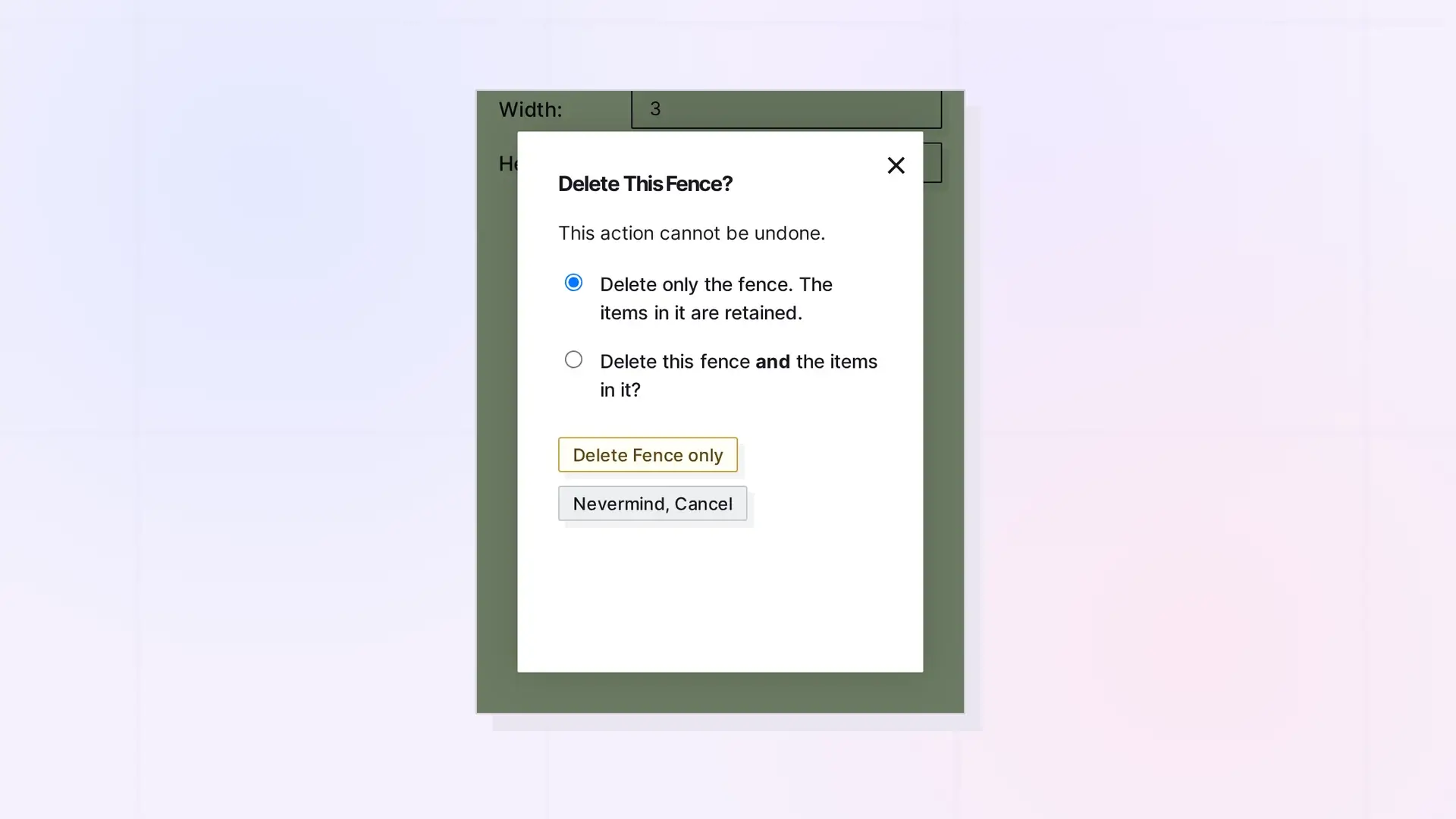
Deleting a fence removes the zone, not your work. By default the items in it stay right where they are on your workspace. If you want to clear out the items too, you can choose to delete the fence and the items in it.
Delete a Fence Step by Step
- Click the fence’s name tab to open its side panel.
- Click …, then click Delete Item.
- In the Delete This Fence? dialog, choose what to delete (see the options below).
- Confirm with the yellow button.
To back out, click Nevermind, Cancel.
The Two Options
- Delete only the fence. The items in it are retained. This is selected by default, and the button reads Delete Fence only. The fence goes away and its items stay where they are.
- Delete this fence and the items in it? The fence and the items in it are deleted.
This action cannot be undone, so check which option is selected before you confirm.
Items Other People Added
If the fence is shared and other people put their own items in it, the dialog tells you what happens to them. Usually items others added go back to them. If you turned on Assume delete capabilities and ownership of items of removed participants in the Share panel, items others added become yours when you keep the items, or are deleted too when you delete everything. See Sharing a Fence: Give Others a Whole Zone of Your Desk.
Next Steps
- Delete or Archive an Item in Opal (and Whether You Can Undo It)
- Delete a Binder
- What Happens to Shared Items When They Are Deleted
FAQ
Can I get a deleted fence back?
No. This action cannot be undone. If you only deleted the fence, your items are still on the workspace, and you can create a new fence around them.
How do I remove a fence someone shared with me?
Click … on the fence, then click Leave Share. See Leave Something That Was Shared with You.

