

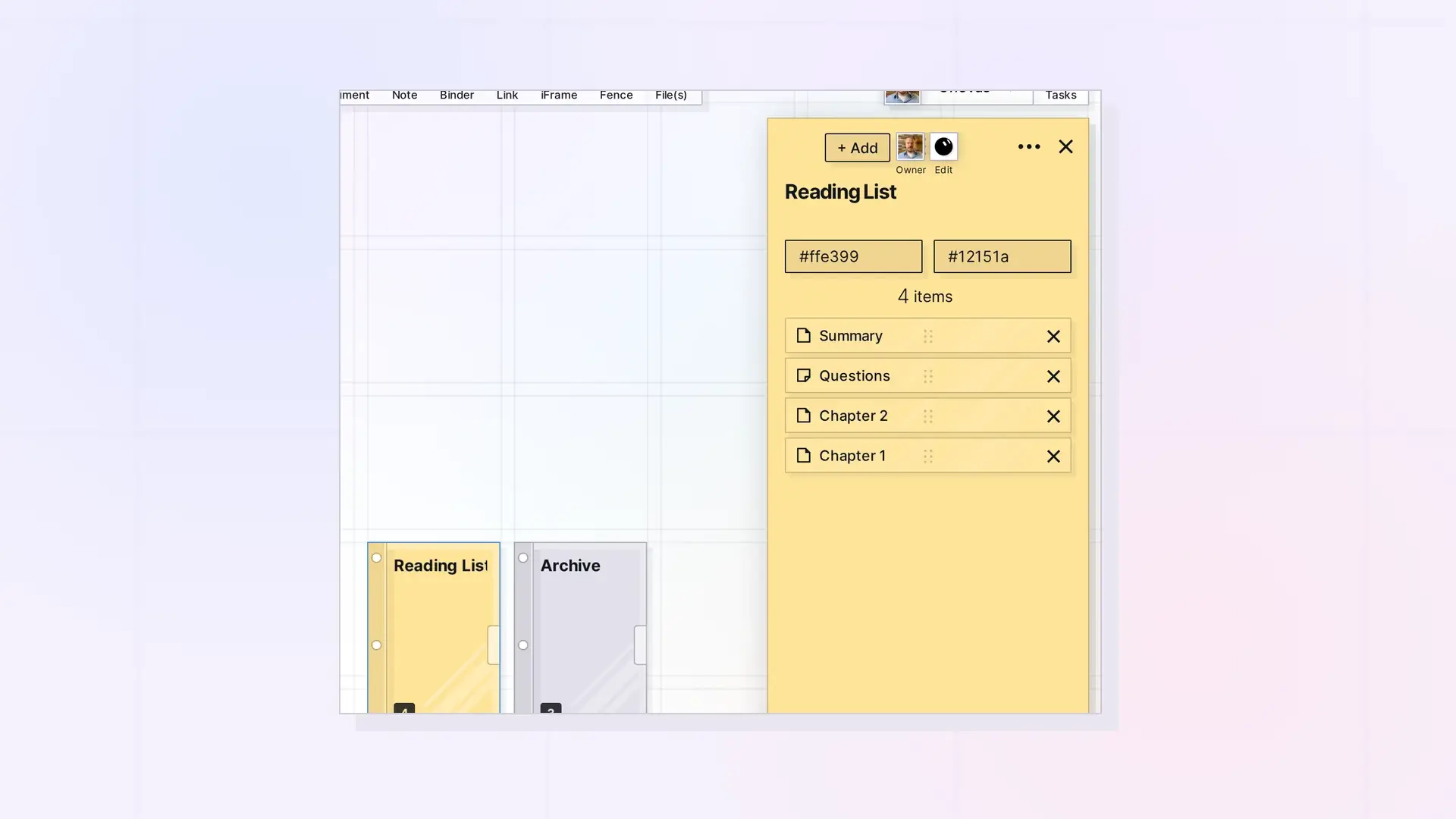
Click a binder on the grid to open its panel. The panel shows the binder’s title and description, its colors, how many items it holds, and the list of items inside. Click any item in the list to open it.
What You See in a Binder’s Panel
- Set icon: the binder’s icon button.
- + Add: add existing items or create new ones inside the binder. See Add Items to a Binder.
- Title and description: click to edit them.
- Two color boxes: the binder’s color and its text color. See Rename, Color, and Set an Icon for a Binder.
- Item count: how many items are in the binder.
- The item list: every item in the binder, in order.
Open an Item in a Binder
- Click the binder to open its panel.
- Click an item in the list. It opens in the panel.
Other Ways to Open
From the binder’s … menu:
- Pan To Item brings the binder into view on the grid.
- Pop Out Item opens it in its own window.
For more on opening items, see Open Items in Opal: One Panel, Pan To Item, and Pop Out Item.
Next Steps
FAQ
Using Pan To Item on an item inside a binder takes me to the binder. Why?
Items in a binder are not on the grid themselves, so Opal pans to the binder that holds them.
Can I see a binder’s items without opening it?
The items are listed in the binder’s panel. Click the binder to see them.

