

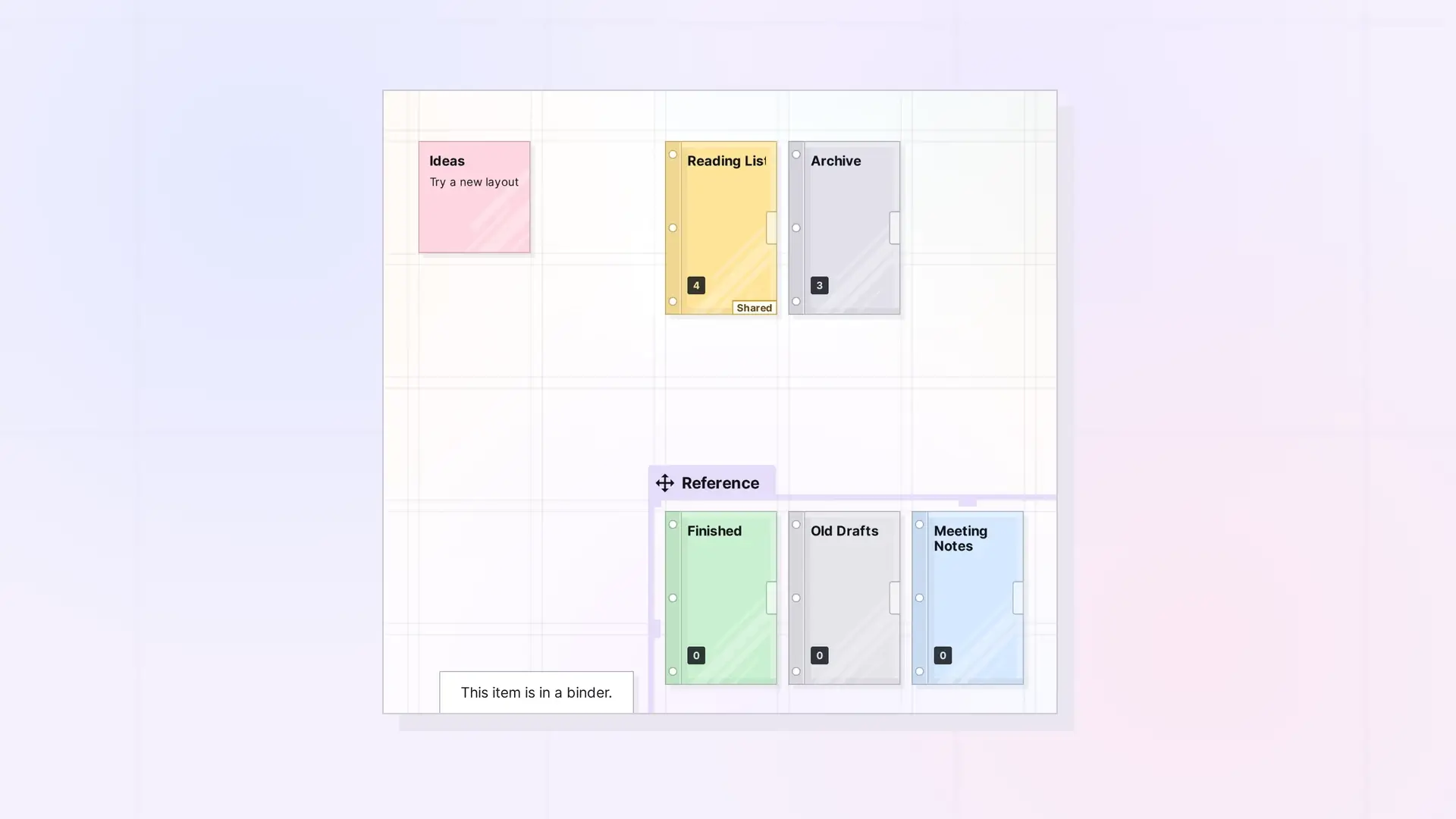
Items in a binder are not on the grid, but you can still find them. Use the Find panel in the toolbar or press Ctrl + K to search. When you pick an item that is in a binder, Opal pans to the binder and tells you “This item is in a binder.”
Use the Find Panel
- Click Find in the toolbar.
- Choose a filter, such as Notes or Documents, or All.
- Click the item. If it is in a binder, Opal pans to the binder and shows “This item is in a binder.”
- Click Open on the item’s row to open the item itself.
Search by Title
Press Ctrl + K to open Search items and type part of the item’s title.
Find the Binder an Open Item Is In
With the item open, click …, then click Pan To Item. Because the item is in a binder, Opal pans to the binder that holds it.
Browse the Binder
Click the binder to open its panel and scan the list. Keeping a binder in a sensible order makes this faster. See Reorder Items in a Binder.
Next Steps
- Open a Binder and Its Items
- Find a Fence
- Open Items in Opal: One Panel, Pan To Item, and Pop Out Item
FAQ
Does the binder’s Search items to add box find items already in the binder?
That box is for adding items to the binder. To find something already in it, use Find, Ctrl + K, or scan the binder’s list.
Why does Opal show the binder instead of the item?
Items in a binder are not on the grid. Opal shows you the binder that holds the item.

