

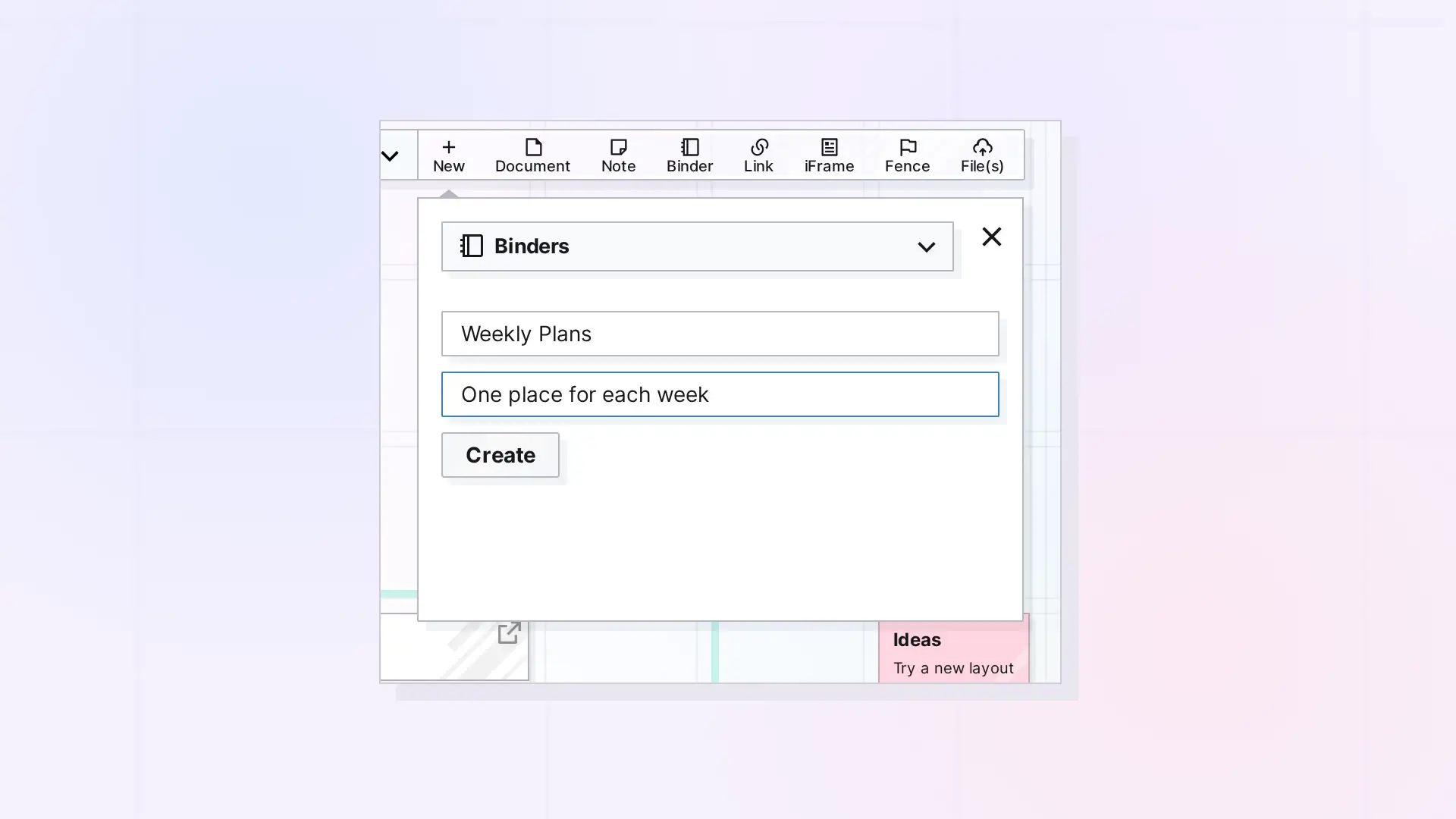
You create a binder from the New panel. Choose Binders as the type, give it a title, and click Create. The binder appears on your workspace, ready for items.
Create a Binder Step by Step
- Click + New in the toolbar.
- Open the type menu at the top of the panel (it starts on Documents) and choose Binders.
- Type a title in Enter a title.
- Optionally, type a short description in Enter a short description.
- Click Create.
Create a Binder in One Click
Click Binder in the toolbar at the top of your screen. Opal adds a binder named Untitled to your workspace and opens its panel, where you can rename it and start adding items.
After You Create It
- Drag items onto the binder, or click the binder and use + Add in its panel. See Add Items to a Binder.
- Set its colors and icon in its panel. See Rename, Color, and Set an Icon for a Binder.
For Developers
Create a binder with the Opal REST API by creating an item of type binder. See Binders API: Add, Remove, Reorder, and Duplicate.
Next Steps
- Add Items to a Binder
- What Is a Binder? Keep Related Items Together
- Creating Items in Opal: Your First Few
FAQ
Can I make a binder from items I already have?
Yes. Create the binder, then drag the items onto it.
Where does a new binder appear?
On your current workspace, where you can drag it into place like any other item.

