

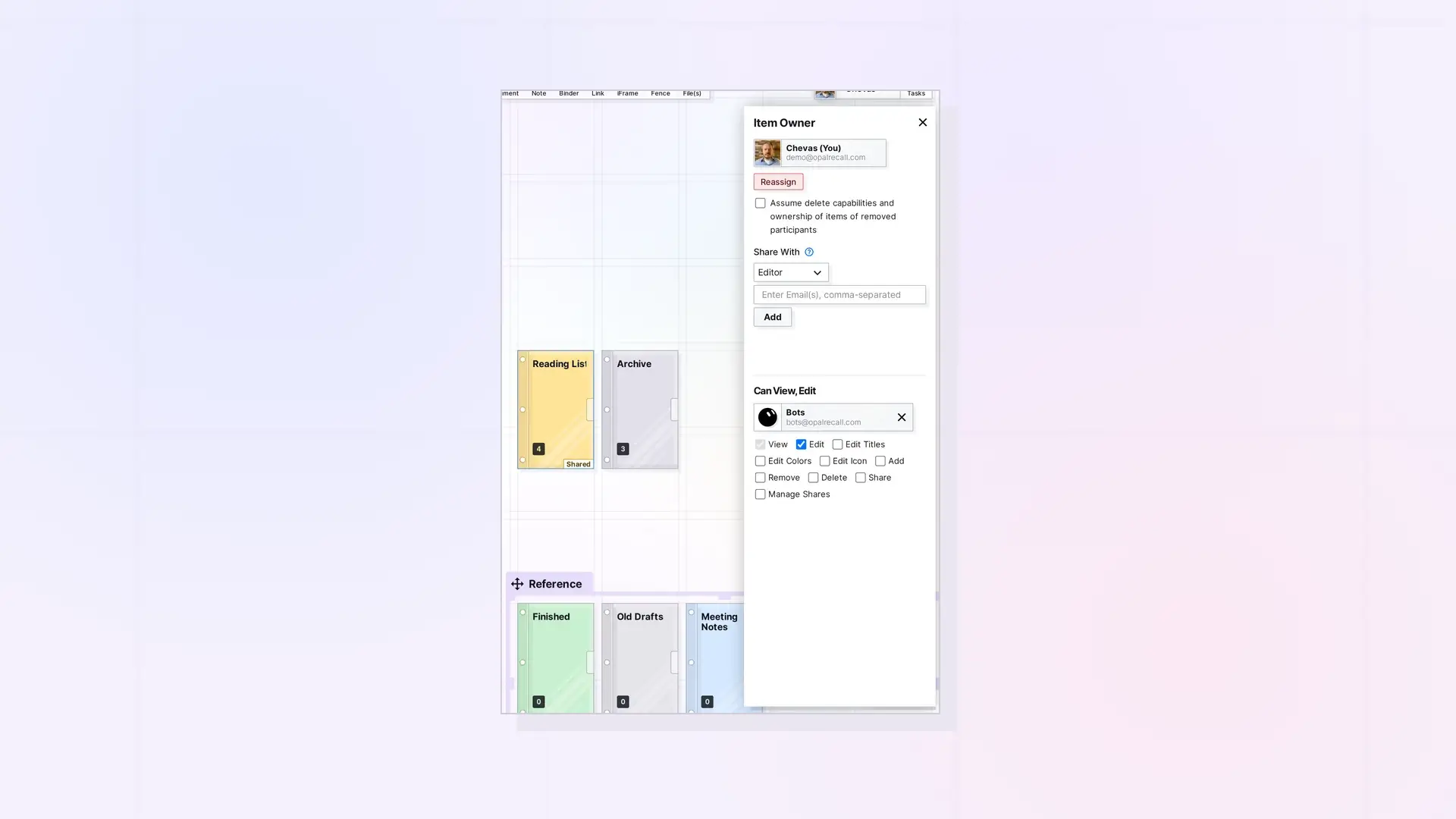
To share a binder, click the binder to open its panel, click …, then click Share. Sharing a binder shares everything inside it. The people you share with see the same list, in the same order, and can work in it according to the permissions you give them. Sharing binders and fences needs a Studio or Workshop plan.
Share a Binder Step by Step
- Click the binder to open its panel.
- Click …, then click Share.
- The Share panel opens with you under Item Owner. A line under it tells you how much you are sharing, for example “Shares this binder and 12 items inside it”.
- Under Share With, choose a role: Viewer, Editor (the default), Contributor, Collaborator, Manager, or Custom.
- Type one or more addresses in Enter Email(s), comma-separated and click Add.
- Check the Not Yet Invited list, then click Send Invite.
The share stays pending until the other person accepts. People without an Opal account get an email inviting them to sign up.
Permissions for a Binder
Binders and fences use the same roles and permissions. For a binder:
| Permission | What it lets them do |
|---|---|
| View | See the binder and everything in it. |
| Edit | Edit the items in it and reorder the binder. |
| Edit Titles | Change titles on the binder and the items in it. |
| Edit Colors | Change colors on the binder and the items in it. |
| Edit Icon | Change icons on the binder and the items in it. |
| Add | Add their own items to the binder. |
| Remove | Take other people’s items out. They go back to their owner, not deleted. |
| Delete | Delete items in the binder, never the binder itself. |
| Share | Share the binder onward. |
| Manage Shares | Pass the ability to manage shares on when sharing onward, and remove people from the shared binder. Changing permissions stays with the owner. |
For each role, see Share Roles and Permissions Explained.
What Gets Shared
- Your own items in the binder are shared with it.
- Items others add stay theirs, and everyone in the binder sees them.
- A shared binder holds up to 500 items, like any binder.
- For the people you share with, the binder and everything in it count toward their plan’s item limit.
Owner Settings
Assume delete capabilities and ownership of items of removed participants is a checkbox in the Share panel for binders and fences, unchecked by default. When it is on, items other people put in your binder are yours to delete, and when someone leaves or is removed, their items become yours and stay in the binder, as far as your storage has room.
When Someone Leaves or Is Removed
Their items leave the binder and go back to them, unless the owner setting above is on.
Hand the Binder to Someone Else
As the owner, you can make someone who accepted the share the new owner. See Reassigning Ownership of Shared Items and Containers.
For Developers
Share a binder with the Opal REST API. See Sharing API: Shares, Permissions, and Recipient Placement and Binders API: Add, Remove, Reorder, and Duplicate.
Next Steps
- Working in a Binder Someone Shared with You
- Sharing a Fence: Give Others a Whole Zone of Your Desk
- Change Someone’s Permissions or Stop Sharing
FAQ
Can I share a binder on the free plan?
Sharing binders and fences needs a Studio or Workshop plan, and so does viewing a shared binder or fence.
Can people I share with delete my binder?
No. The Delete permission lets them delete items in it, never the binder itself.
Can I send a copy of a binder instead?
No. Send a Copy is for single items. To make your own copy, see Duplicate a Binder.

