

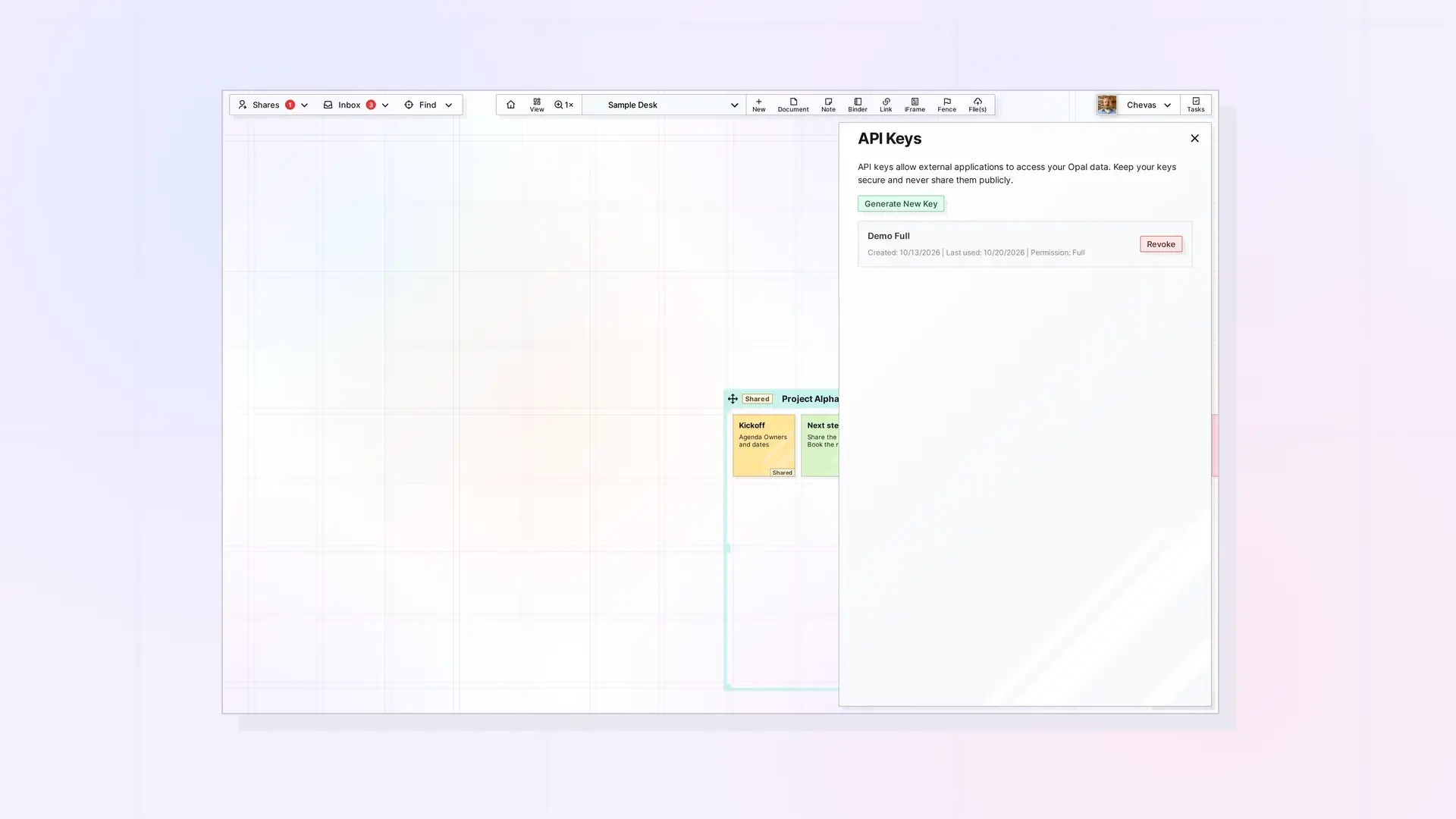
These curl commands make your first Opal API calls: check your plan and usage, list workspaces, create a workspace, list items, create a note, add content to it, save a view, share an item, and export a workspace. Replace the placeholder key and IDs with your own values. Remember that every key acts on live data.
Before You Start
- A Workshop plan and an API key. See Opal API Keys: Create, Use, and Revoke.
- Your key in place of
opal_live_xxx. To explore without changing anything, use a read-only key and stick to theGETcalls. - The base URL
https://app.opalrecall.com/api/v1(the examples spell it out). WORKSPACE_IDandITEM_IDstand for real IDs. Use submission IDs, the 24-character IDs the API returns as_idorid. See API Conventions: IDs, Response Format, and Status Codes.
1. Check Your Plan and Usage
curl https://app.opalrecall.com/api/v1/account \
  -H "Authorization: Bearer opal_live_xxx"
Returns your plan, its limits, your usage, and your account status. Call it before bulk work. See Plan, Limits, and Usage in the Opal API: GET /account.
2. List Your Workspaces
curl https://app.opalrecall.com/api/v1/workspaces \
  -H "Authorization: Bearer opal_live_xxx"
Returns every workspace you own as an array under data. Copy the _id of the workspace you want to use.
3. Create a Workspace
curl -X POST https://app.opalrecall.com/api/v1/workspaces \
  -H "Authorization: Bearer opal_live_xxx" \
  -H "Content-Type: application/json" \
  -d '{"name":"Project Alpha"}'
Without a slugPrefix, Opal makes the workspace address from the name, using the next available address (project-alpha, then project-alpha-2, and so on). Returns 201 with the workspace under data. Workspaces API: List, Create, Update, Reorder, and Delete has the address rules and the workspace limit.
4. List Items in a Workspace
curl "https://app.opalrecall.com/api/v1/items?workspace=WORKSPACE_ID" \
  -H "Authorization: Bearer opal_live_xxx"
Returns up to 50 items by default (maximum 100 with limit). Use skip to page through more. See Items API: List, Get, Create, Update, and Delete.
5. Create a Note
curl -X POST https://app.opalrecall.com/api/v1/items \
  -H "Authorization: Bearer opal_live_xxx" \
  -H "Content-Type: application/json" \
  -d '{"type":"note","title":"Hello from the API","workspace":"WORKSPACE_ID"}'
Returns 201 with the new item under data. Its submission ID is data._id:
{
  "data": {
    "_id": "SUBMISSION_ID"
  }
}
The sample shows only the field you need next. The real response has more fields.
6. Put Content on a Page
Create the item first, then set its content with a PATCH. Content sent on create may not be stored, so a new item without the follow-up PATCH is an empty shell. Send editorContent as a raw JSON object with a blocks array, not as a string.
curl -X PATCH https://app.opalrecall.com/api/v1/items/ITEM_ID \
  -H "Authorization: Bearer opal_live_xxx" \
  -H "Content-Type: application/json" \
  -d '{"editorContent":{"blocks":[{"type":"paragraph","props":{"backgroundColor":"default","textColor":"default","textAlignment":"left"},"content":[{"type":"text","text":"Updated through the API","styles":{}}],"children":[]}]}}'
Writing Page Content: BlockNote JSON and editorContent covers every block type.
7. Save a View
curl -X POST https://app.opalrecall.com/api/v1/views \
  -H "Authorization: Bearer opal_live_xxx" \
  -H "Content-Type: application/json" \
  -d '{"name":"Client board","workspace":"WORKSPACE_ID","x":10450,"y":9800,"zoom":1}'
A saved view is a named spot on the canvas. It appears in the app’s View menu. See Saved Views API: Save, List, and Set Your Home View.
8. Share With Granular Permissions
curl -X POST https://app.opalrecall.com/api/v1/shares \
  -H "Authorization: Bearer opal_live_xxx" \
  -H "Content-Type: application/json" \
  -d '{"itemId":"ITEM_ID","email":"user@example.com","permissions":{"canView":true,"canEdit":true,"canAdd":false,"canResize":false,"canRemove":false,"canDelete":false,"canShare":false,"canManageShares":false,"canPublish":false}}'
New shares stay pending until the recipient accepts them. See Sharing API: Shares, Permissions, and Recipient Placement.
9. Export a Workspace
curl -f -o workspace-export.zip "https://app.opalrecall.com/api/v1/export?workspace=WORKSPACE_ID" \
  -H "Authorization: Bearer opal_live_xxx"
Downloads a zip of Markdown files plus your stored files. See Export API: Download Your Workspaces as a Zip.
Next Steps
- Create and update items: Items API: List, Get, Create, Update, and Delete
- Write page content: Writing Page Content: BlockNote JSON and editorContent
- Share items: Sharing API: Shares, Permissions, and Recipient Placement
- Handle errors and limits: Errors, Rate Limits, and Plan Limits in the Opal API
- Try the combined examples: REST API Recipes: Create, Arrange, Share, Publish, and Export
Get Help
Stuck on an API call or have a question? Ask in the Opal Discord or send us a message through the contact form.
FAQ
How do I create a note with the API?
Send POST /items with type, title, and workspace. The note is created in that workspace. If you leave out workspace, the item goes to your inbox.
Why is my new item empty?
Content sent on create may not be stored. Create the item, then call PATCH /items/:id with editorContent to set its content.
How do I share an item with view-only access?
Send POST /shares with canView set to true and every other toggle set to false. See Sharing API: Shares, Permissions, and Recipient Placement.
Can I run these examples with a read-only key?
Only the GET calls. Any other method returns 403 with a read-only key.

