

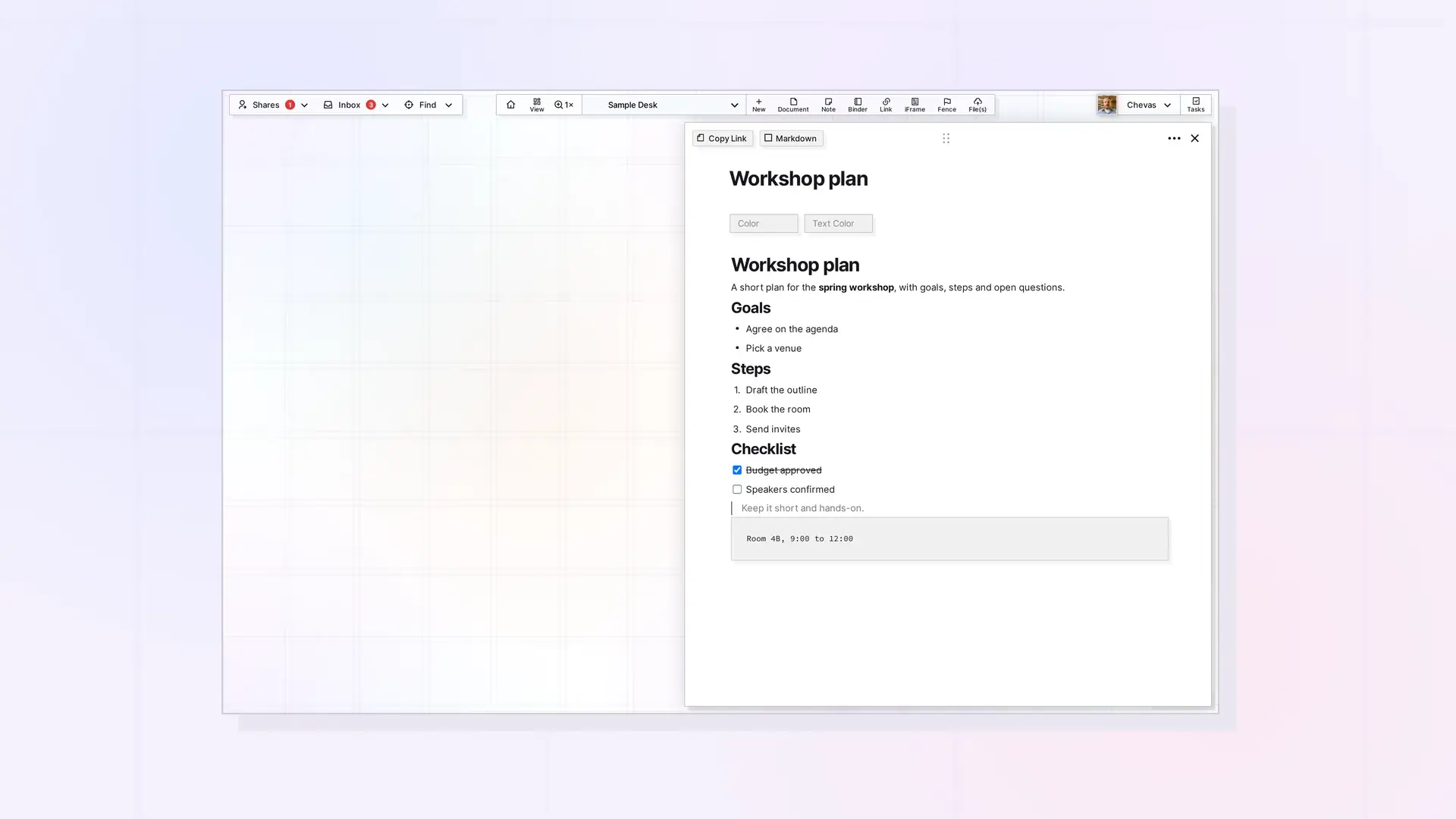
Opal stores page content in the editorContent field as BlockNote JSON. Send it as a raw JSON object with a blocks array inside your PATCH body, never as a string. Create the item first with POST /items, then set its content with PATCH /items/:id. Content is limited to 2 MB of editorContent and 1 MB of text.
The Create-Then-Patch Workflow
POST /itemsto create the item metadata. Theworkspacemust be one of yours. Leave it out for the inbox.- Capture the returned
data._id. PATCH /items/:idwith a raw-objecteditorContent.- Check that the update succeeded.
Content sent on create may not be stored, so treat create and patch as one workflow. A new item without the follow-up PATCH is an empty shell. See Items API: List, Get, Create, Update, and Delete.
Send editorContent as a Raw Object
Correct:
{
  "editorContent": {
    "blocks": [ ... ]
  }
}
Wrong, because the payload is stringified:
{
  "editorContent": "{\"blocks\":[...]}"
}
Opal does wrap a bare array of blocks and parses a JSON string that holds a blocks object or array, but a raw object with blocks is the safe form. Any other string returns 400.
Block Shape
Every block should include type, props, children, and content when that block type uses inline content. A typical paragraph block:
{
  "id": "b0",
  "type": "paragraph",
  "props": {
    "backgroundColor": "default",
    "textColor": "default",
    "textAlignment": "left"
  },
  "content": [
    {
      "type": "text",
      "text": "Hello world",
      "styles": {}
    }
  ],
  "children": []
}
Sequential IDs such as b0, b1, and b2 are fine.
Block Types
| Type | Key props and notes |
|---|---|
paragraph | Standard text block |
heading | Set level 1 to 3 in props |
bulletListItem | Unordered list item |
numberedListItem | Ordered list item |
checkListItem | Set the checked boolean in props |
image | Media block |
video | Media block |
audio | Media block |
file | File or download block |
codeBlock | Block-level preformatted code. Set language in props |
table | Uses a tableContent object |
divider | Horizontal rule |
To upload an image, video, audio file, or other file and get a ready-made block, use POST /media/upload. See Upload Files and Media with the API. For how these blocks look in the app, see the block types cheat sheet in the Opal Documents help.
Code Blocks
Use a real codeBlock block for fenced code examples. Do not encode block-level code as inline code text styles or as a paragraph that contains literal <pre> markup. If a Markdown fence has no language, use "text". BlockNote stores the code body in content[0].text, not in props.code.
{
  "id": "bN",
  "type": "codeBlock",
  "props": {
    "language": "javascript"
  },
  "content": [
    {
      "type": "text",
      "text": "const x = 1;\nconsole.log(x);",
      "styles": {}
    }
  ],
  "children": []
}
Inline Content
| Type | How to handle it |
|---|---|
text | Use .text |
link | Recurse into the nested .content |
itemLink | Use .props.itemTitle as display text and preserve .props.submissionId |
Item Links
Opal supports inline links to other Opal items. An itemLink should keep props.submissionId, props.itemType, and props.itemTitle. When you extract text, include itemTitle. When context matters, follow the linked item by submissionId. See Item Links for how they work in the app.
{
  "type": "paragraph",
  "props": {
    "backgroundColor": "default",
    "textColor": "default",
    "textAlignment": "left"
  },
  "content": [
    {
      "type": "text",
      "text": "See ",
      "styles": {}
    },
    {
      "type": "itemLink",
      "props": {
        "submissionId": "SUBMISSION_ID",
        "itemType": "document",
        "itemTitle": "Meeting Notes"
      }
    },
    {
      "type": "text",
      "text": " for details.",
      "styles": {}
    }
  ],
  "children": []
}
Tables
{
  "type": "table",
  "props": {
    "textColor": "default"
  },
  "content": {
    "type": "tableContent",
    "columnWidths": [
      null,
      null
    ],
    "rows": [
      {
        "cells": [
          {
            "type": "tableCell",
            "content": [
              {
                "type": "text",
                "text": "Col 1",
                "styles": {}
              }
            ],
            "props": {
              "colspan": 1,
              "rowspan": 1,
              "backgroundColor": "default",
              "textColor": "default",
              "textAlignment": "left"
            }
          },
          {
            "type": "tableCell",
            "content": [
              {
                "type": "text",
                "text": "Col 2",
                "styles": {}
              }
            ],
            "props": {
              "colspan": 1,
              "rowspan": 1,
              "backgroundColor": "default",
              "textColor": "default",
              "textAlignment": "left"
            }
          }
        ]
      }
    ]
  },
  "children": []
}
Spacing and Dividers
For readable Opal pages, insert empty paragraph spacer blocks after major content blocks. Insert an empty spacer block after paragraphs, tables, completed bullet, numbered, and checklist groups, and code, media, and file blocks. Insert one before and after a divider. Always end the document with a spacer block so the cursor has room after the last content block.
An empty spacer block:
{
  "id": "bN",
  "type": "paragraph",
  "props": {
    "backgroundColor": "default",
    "textColor": "default",
    "textAlignment": "left"
  },
  "content": [],
  "children": []
}
A divider block. Do not use a paragraph that contains --- as a fake divider.
{
  "id": "bN",
  "type": "divider",
  "props": {},
  "children": []
}
Nested Children
Blocks can contain nested children. Recurse into them when you read or transform content. Do not ignore nested list structure.
Edit a Page That Contains Media
- Fetch the live page with
GET /items/:id/pageimmediately before patching. - Edit only the intended blocks.
- Do not overwrite unrelated media blocks from stale local snapshots.
- Check that media URLs still work if your change touched media-heavy content.
If the item is published, call POST /items/:id/publish/refresh after you patch it, because API edits do not update the public page on their own. See Publishing API: Publish, Refresh, Status, and Unpublish.
Next Steps
- See the full Items API: Items API: List, Get, Create, Update, and Delete
- Embed media in a page: Upload Files and Media with the API
- Learn the editor from the app side: What is a Block Editor, What are Blocks, and the Basics of Editing Text
- Run the combined example: REST API Recipes: Create, Arrange, Share, Publish, and Export
FAQ
Why does my API call say the content is invalid?
Send editorContent as a raw object with a blocks array. A string that is not a JSON blocks object or array returns 400.
How do I add a code block through the API?
Use a codeBlock block with props.language set, and put the code in content[0].text. If you have no language, use "text".
How large can page content be?
2 MB of editorContent and 1 MB of text. Larger content returns 413.
Why did my API edit not show on the public page?
Edits through the API do not update a published page by themselves. Call POST /items/:id/publish/refresh.

