

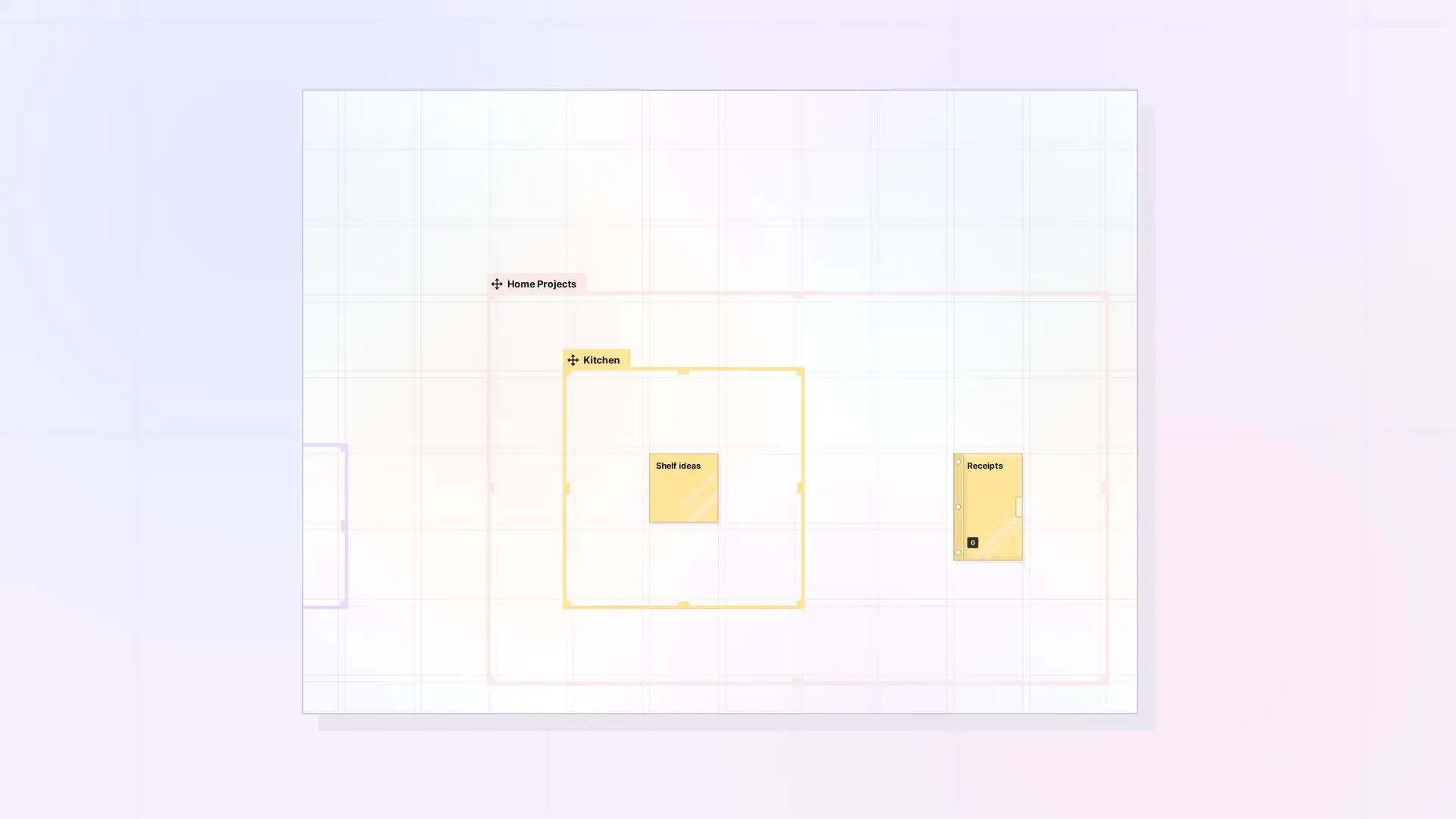
Use POST /items/batch/move to reposition up to 500 items in one request, POST /items/:id/bring-to-front to change layer order, and PATCH /items/:id/inbox to move an item in or out of the inbox. Positions are canvas coordinates of an item’s top-left corner. Shared items you receive are placed through the share record instead.
Canvas Coordinates
Positions are canvas coordinates of an item’s top-left corner. The app starts new workspace items around 10000,10000.
| Item | Size on the canvas |
|---|---|
| Documents, notes, binders, and files | 100 wide, 155 tall |
| Links and iframes | 155 wide, 100 tall |
| Canvas grid | 110 units |
| Fence | 20 + 110 x fenceWidth by 20 + 110 x fenceHeight units |
An item belongs to a fence when its center is inside the fence. Space positions so item footprints do not overlap. See Moving, Positioning, and Managing Items on a Workspace for how moving works in the app.
Batch Move Items
POST /api/v1/items/batch/move
curl -X POST https://app.opalrecall.com/api/v1/items/batch/move \
  -H "Authorization: Bearer opal_live_xxx" \
  -H "Content-Type: application/json" \
  -d '{"moves":[{"id":"SUBMISSION_ID","xPosition":10020,"yPosition":10020}]}'
Send a maximum of 500 moves per request. Each id is the submission ID of an item you own, or of one shared with you (then your place for it moves: your share record). An item you see inside a fence shared with you moves inside that fence, for everyone: give its position where you see it (inside your copy), and the server saves the same place inside the fence on its owner’s workspace. That needs canEdit on the fence, and the item stays inside the fence’s walls (a position past them is pulled back to the edge). A move of your own fence can also set its size with fenceWidth and fenceHeight (grid units 1 to 30), and so can a move of your copy of a shared fence, with canResize (the fence itself changes, for everyone). Each move succeeds or fails on its own. A failed one has a code (400, 403 not yours or not allowed, 404 not found, 500):
{
  "data": {
    "success": 1,
    "failed": 1,
    "total": 2,
    "results": [
      {
        "id": "SUBMISSION_ID_1",
        "status": "ok",
        "xPosition": 10020,
        "yPosition": 10020
      },
      {
        "id": "SUBMISSION_ID_2",
        "status": "error",
        "code": 404,
        "error": "Not found"
      }
    ],
    "fenceChildren": { "FENCE_ID": ["SUBMISSION_ID_1"] }
  }
}
Successful moves update connected clients and fence membership. fenceChildren lists the fences whose contents the moves changed. More than 500 moves returns 400 Maximum 500 items per batch.
An item that is being handed to a new owner is locked: its move fails on its own with code: 409 and reason: "ITEM_TRANSFERRING", and the other moves go ahead. Try it again when the reassignment is done. See Reassign Owner API: Hand a Shared Item, Binder, or Fence to a Member.
Moves Into and Out of a Shared Fence
A move into or out of a shared fence says what happened, in outcome:
| Outcome | What happened |
|---|---|
"added" | Your own item, moved inside your copy of a shared fence you have canAdd on, went in (fenceId). It is saved where the fence is, on its owner’s workspace. |
"not-added" | It is inside your copy, but did not go in: reason is FENCE_PERMISSION_REQUIRED (with requires) or FENCE_FULL. It stays where you put it, on your workspace. |
"held" | Moved past the walls without canRemove: it stays inside, at the edge. |
"left" | Your own item, moved out of a shared fence: on your workspace where you put it. |
"returned" | Someone else’s item, moved out (canRemove): back to its owner, just outside their copy of the fence. returnedTo is { userId, name }, and shareRecordId is your place for it if it is also shared with you on its own. |
A size that would make a shared fence smaller than what is in it fails with code: 409 and reason: "FENCE_TOO_SMALL".
Bring an Item to the Front
POST /api/v1/items/:id/bring-to-front
Owner-only. Sets zPosition to the highest z value in the item’s workspace plus one and returns { "data": { "id": "...", "zPosition": n } }.
Move an Item In or Out of the Inbox
PATCH /api/v1/items/:id/inbox
curl -X PATCH https://app.opalrecall.com/api/v1/items/ITEM_ID/inbox \
  -H "Authorization: Bearer opal_live_xxx" \
  -H "Content-Type: application/json" \
  -d '{"inInbox":false,"workspace":"WORKSPACE_ID"}'
inInbox is required. Use inInbox: false with workspace (one of yours) to move an item onto a workspace, optionally at xPosition/yPosition. Use inInbox: true to move it into the inbox. This sets inInbox and leaves the workspace fields as they were. It works on your own items, and on items shared with you: then it moves your place for the item (your share record). You can also move a shared item with PATCH /shares/:id/inbox.
A fence takes what is in it along: childIds (up to 500 item IDs), or else its stored contents. Into the inbox they keep their places. Out of it, they move as far as the fence moved. Your copy of a fence shared with you moves alone: what is inside it keeps its place in the fence and shows wherever your copy is. Returns the updated item under data, the IDs that moved with it under children, and under fenceChildren the fences whose contents changed.
You can also move an item to another workspace by sending workspace in PATCH /items/:id. See Items API: List, Get, Create, Update, and Delete.
Single-Item Moves and Fences
PATCH /items/:id with xPosition and yPosition moves one item. Moving items (that, or a batch move) recomputes which fences contain them, so an explicit add to or remove from a fence can be undone by a later move in that workspace. See Fences API: Add Items, Read Children, and Move a Fence.
Place a Shared Item You Received
An accepted shared item does not use the owner’s workspace fields for your placement. Your position is on the share record:
- Accept the pending share with
POST /shares/:id/accept. It lands in your inbox. - Move it out of the inbox with
PATCH /shares/:id/inboxand{"inInbox": false, "workspace": "WORKSPACE_ID"}. - If you need exact coordinates,
PATCH /shares/:idwithparentWorkspaceSubmissionId,parentWorkspaceName,xPosition, andyPosition. The workspace must be one of yours.
Use canvas coordinates, not screen coordinates. Normal workspace items commonly live around the 10000,10000 region, so for an empty workspace place shared items near there instead of at small positions such as 160,160. See Sharing API: Shares, Permissions, and Recipient Placement.
Next Steps
- Create items at a position: Items API: List, Get, Create, Update, and Delete
- Save a view of the items you arranged: Saved Views API: Save, List, and Set Your Home View
- Group items: Fences API: Add Items, Read Children, and Move a Fence and Binders API: Add, Remove, Reorder, and Duplicate
- Share items and place them: Sharing API: Shares, Permissions, and Recipient Placement
- Move items between workspaces in the app: Move Items Between Workspaces
FAQ
How do I move many items at once?
Use POST /items/batch/move with up to 500 moves. Each move succeeds or fails on its own.
What do the canvas coordinates mean?
They are the position of an item’s top-left corner on the canvas. New workspace items start around 10000,10000, and the canvas grid is 110 units.
Why can a recipient not move my item?
A recipient’s placement lives on their share record. They move a shared item with PATCH /shares/:id or POST /items/batch/move, which moves their place, not your item. The exception is a fence shared with them: with canEdit they can move items inside it, for everyone.
Does moving an item change its fence?
Yes. Moving items recomputes which fences contain them. An item belongs to a fence when its center is inside the fence.

