

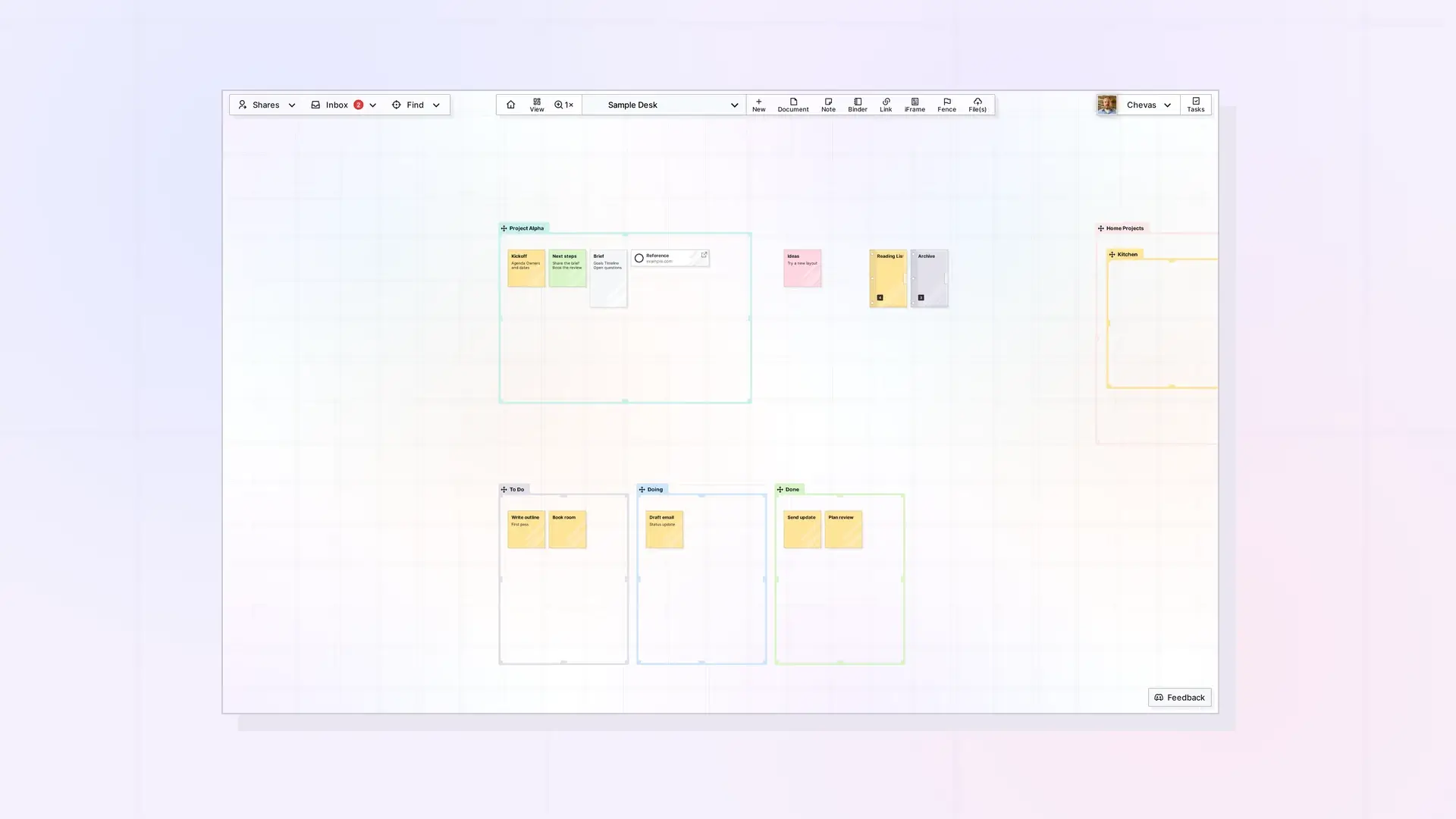
These recipes chain Opal API calls to finish a whole task: create a document and fill it, lay out items on the canvas, save a view, share view-only, publish and refresh, export a workspace, share a fence, and hand a binder to a teammate. Each step is a curl call with placeholder values. Every key acts on live data, so use a test workspace while you learn.
Replace opal_live_xxx, WORKSPACE_ID, and ITEM_ID with your own values. Each response returns the new item’s submission ID as data._id. Use it as ITEM_ID in the next step.
Recipe 1: Create a Document With Content
Creating an item and setting its content are two calls. A document created without the second call is empty.
Step 1: create the document.
curl -X POST https://app.opalrecall.com/api/v1/items \
  -H "Authorization: Bearer opal_live_xxx" \
  -H "Content-Type: application/json" \
  -d '{"type":"document","title":"Weekly plan","workspace":"WORKSPACE_ID"}'
Step 2: set its content with a raw editorContent object.
curl -X PATCH https://app.opalrecall.com/api/v1/items/ITEM_ID \
  -H "Authorization: Bearer opal_live_xxx" \
  -H "Content-Type: application/json" \
  -d '{"editorContent":{"blocks":[{"id":"b0","type":"heading","props":{"backgroundColor":"default","textColor":"default","textAlignment":"left","level":1},"content":[{"type":"text","text":"Weekly plan","styles":{}}],"children":[]},{"id":"b1","type":"paragraph","props":{"backgroundColor":"default","textColor":"default","textAlignment":"left"},"content":[{"type":"text","text":"Created through the API.","styles":{}}],"children":[]},{"id":"b2","type":"paragraph","props":{"backgroundColor":"default","textColor":"default","textAlignment":"left"},"content":[],"children":[]}]}}'
Step 3: read it back to check.
curl https://app.opalrecall.com/api/v1/items/ITEM_ID/page \
  -H "Authorization: Bearer opal_live_xxx"
See Writing Page Content: BlockNote JSON and editorContent for every block type.
Recipe 2: Lay Out Items on the Canvas
Create each note with a position, or create them anywhere and then move them all in one request. Notes are 100 wide and 155 tall, and the grid is 110 units, so positions 110 apart sit side by side.
curl -X POST https://app.opalrecall.com/api/v1/items/batch/move \
  -H "Authorization: Bearer opal_live_xxx" \
  -H "Content-Type: application/json" \
  -d '{"moves":[{"id":"SUBMISSION_ID_1","xPosition":10020,"yPosition":10020},{"id":"SUBMISSION_ID_2","xPosition":10130,"yPosition":10020},{"id":"SUBMISSION_ID_3","xPosition":10240,"yPosition":10020}]}'
One request can move up to 500 items you own. Each move succeeds or fails on its own, so check data.results. See Position Items: Batch Move, Inbox, and Z-Order.
Recipe 3: Save a View of What You Arranged
Center the view on the items: x is the middle of their left and right edges and y the middle of their top and bottom edges. For three notes at the positions above, the left edge is 10020 and the right edge is 10240 + 100 = 10340, so x is 10180. The top is 10020 and the bottom is 10020 + 155 = 10175, so y is about 10097.5.
curl -X POST https://app.opalrecall.com/api/v1/views \
  -H "Authorization: Bearer opal_live_xxx" \
  -H "Content-Type: application/json" \
  -d '{"name":"Client board","workspace":"WORKSPACE_ID","x":10180,"y":10097.5,"zoom":1}'
To make it the Home button’s target, use the returned view ID:
curl -X PATCH https://app.opalrecall.com/api/v1/views/settings \
  -H "Authorization: Bearer opal_live_xxx" \
  -H "Content-Type: application/json" \
  -d '{"homeViewId":"VIEW_ID"}'
See Saved Views API: Save, List, and Set Your Home View.
Recipe 4: Share View-Only
Set canView to true and every other toggle to false.
curl -X POST https://app.opalrecall.com/api/v1/shares \
  -H "Authorization: Bearer opal_live_xxx" \
  -H "Content-Type: application/json" \
  -d '{"itemId":"ITEM_ID","email":"user@example.com","permissions":{"canView":true,"canEdit":false,"canAdd":false,"canResize":false,"canRemove":false,"canDelete":false,"canShare":false,"canManageShares":false,"canPublish":false}}'
The share stays pending until the recipient accepts it. To see who has accepted, call GET /shares/outgoing, which lists accepted shares only. See Sharing API: Shares, Permissions, and Recipient Placement.
Recipe 5: Publish, Then Refresh After Edits
Publish the document:
curl -X POST https://app.opalrecall.com/api/v1/items/ITEM_ID/publish \
  -H "Authorization: Bearer opal_live_xxx" \
  -H "Content-Type: application/json" \
  -d '{"showTimestamps":false}'
The response has publicUrl. Later, after you change the document through the API, push the change to the public page:
curl -X POST https://app.opalrecall.com/api/v1/items/ITEM_ID/publish/refresh \
  -H "Authorization: Bearer opal_live_xxx"
Publish and refresh share one limit of 20 operations per user per 60 seconds. See Publishing API: Publish, Refresh, Status, and Unpublish.
Recipe 6: Check Your Room Before a Bulk Job
Before you create many items or upload many files, read your plan and usage.
curl https://app.opalrecall.com/api/v1/account \
  -H "Authorization: Bearer opal_live_xxx"
Compare plan.limits.items with usage.items.total, plan.limits.storageBytes with usage.storageBytes, and check plan.limits.fileSizeBytes before each upload. If the work will not fit, stop before you start. See Plan, Limits, and Usage in the Opal API: GET /account.
Recipe 7: Export a Workspace
Check first, then download:
curl -f "https://app.opalrecall.com/api/v1/export/check?workspace=WORKSPACE_ID" \
  -H "Authorization: Bearer opal_read_xxx"

curl -f -o workspace-export.zip "https://app.opalrecall.com/api/v1/export?workspace=WORKSPACE_ID" \
  -H "Authorization: Bearer opal_read_xxx"
A read-only key is enough for export. See Export API: Download Your Workspaces as a Zip.
Recipe 8: Share a Fence and Let a Teammate Add Items
Give the teammate canEdit to move items inside the fence and canAdd to put their own items in.
Step 1 (you): share the fence.
curl -X POST https://app.opalrecall.com/api/v1/shares \
  -H "Authorization: Bearer opal_live_xxx" \
  -H "Content-Type: application/json" \
  -d '{"itemId":"FENCE_ID","email":"teammate@example.com","permissions":{"canView":true,"canEdit":true,"canAdd":true}}'
Step 2 (teammate): find the pending fence share, check which of its items they already have, accept it, and place their copy of the fence on a workspace.
curl "https://app.opalrecall.com/api/v1/shares/incoming?containerType=fence" \
  -H "Authorization: Bearer opal_live_xxx"

curl https://app.opalrecall.com/api/v1/shares/SHARE_ID/already-have \
  -H "Authorization: Bearer opal_live_xxx"

curl -X POST https://app.opalrecall.com/api/v1/shares/SHARE_ID/accept \
  -H "Authorization: Bearer opal_live_xxx" \
  -H "Content-Type: application/json" \
  -d '{"ownItems":"move"}'

curl -X PATCH https://app.opalrecall.com/api/v1/shares/SHARE_ID/inbox \
  -H "Authorization: Bearer opal_live_xxx" \
  -H "Content-Type: application/json" \
  -d '{"inInbox":false,"workspace":"WORKSPACE_ID"}'
If already-have lists items, "ownItems":"move" shows them inside the fence only, and the teammate’s own share of each stays, placed in their inbox. Leave ownItems out, or send "leave", to keep them where they are and not see them in the fence. The choice is saved on the share and also applies to items put in the fence later.
Step 3 (teammate): put one of their own items in the fence.
curl -X POST https://app.opalrecall.com/api/v1/items/FENCE_ID/fence/items \
  -H "Authorization: Bearer opal_live_xxx" \
  -H "Content-Type: application/json" \
  -d '{"itemId":"CHILD_ID","offsetX":40,"offsetY":40}'
The item stays the teammate’s, and everyone in the fence sees it arrive. Read what is inside with GET /items/FENCE_ID/fence/children. See Fences API: Add Items, Read Children, and Move a Fence.
Recipe 9: Hand a Binder to a Teammate and Keep View Access
The teammate must have accepted the binder’s share. First find their user ID:
curl "https://app.opalrecall.com/api/v1/shares/outgoing?containerType=binder" \
  -H "Authorization: Bearer opal_live_xxx"
Use recipient.userId from their share as newOwnerId, and keep a view-only share for yourself:
curl -X POST https://app.opalrecall.com/api/v1/items/BINDER_ID/reassign \
  -H "Authorization: Bearer opal_live_xxx" \
  -H "Content-Type: application/json" \
  -d '{"newOwnerId":"USER_ID","includeContents":true,"retainShare":true,"permissions":{"canView":true}}'
Your items in the binder go with it. If the teammate’s storage has no room, the call returns 409 with NO_ROOM and nothing changes. See Reassign Owner API: Hand a Shared Item, Binder, or Fence to a Member.
For a large binder, add "background": true. The call answers 202 with a transferId. Check on it until status is done:
curl https://app.opalrecall.com/api/v1/items/reassign/TRANSFER_ID \
  -H "Authorization: Bearer opal_live_xxx"
Next Steps
- Browse every endpoint: Opal REST API Endpoint Cheat Sheet
- Handle errors in your scripts: Errors, Rate Limits, and Plan Limits in the Opal API
- Hand these tasks to an agent: Opal Agent Skill: Let Your AI Agent Use the Opal REST API
- Learn each area: Items API: List, Get, Create, Update, and Delete, Sharing API: Shares, Permissions, and Recipient Placement, and Publishing API: Publish, Refresh, Status, and Unpublish
FAQ
Why is my new document empty?
Content sent on create may not be stored. Create the item, then call PATCH /items/:id with editorContent.
How do I put many items on the canvas quickly?
Use POST /items/batch/move to position up to 500 items in one request.
Do published pages update when I edit through the API?
No. Call POST /items/:id/publish/refresh after you edit a published item.
Can I run these recipes with a read-only key?
Only the read steps, such as GET calls and export. Any write returns 403.

