

Opal gives you three ways to let someone see your work. Share to work on the same item together, Send a Copy to give someone their own independent version, or Publish to make a public, read-only page anyone with the link can view.
Compare the Options
| Share | Send a Copy | Publish | |
|---|---|---|---|
| Who can see it | People you invite | The person you send it to | Anyone with the link |
| Needs an Opal account | Yes | Yes | No |
| Same item or a copy | Same item, live | An independent copy | A public page |
| Can they edit | With the permissions you give | Their copy is fully theirs | No |
| Binders and fences | Yes | No | Yes, by the owner |
| Can you take it back | Yes, remove them | No, the copy is theirs | Yes, Unpublish |
Choose Share When
- You are working on something together.
- You want to control what each person can do.
Choose Send a Copy When
- You want to hand off a template, a checklist, or a finished piece.
- You do not want their changes to affect your original.
Choose Publish When
- You want people without Opal to see it.
- You are sharing a link widely, for example on a website.
Where to Find Each Option
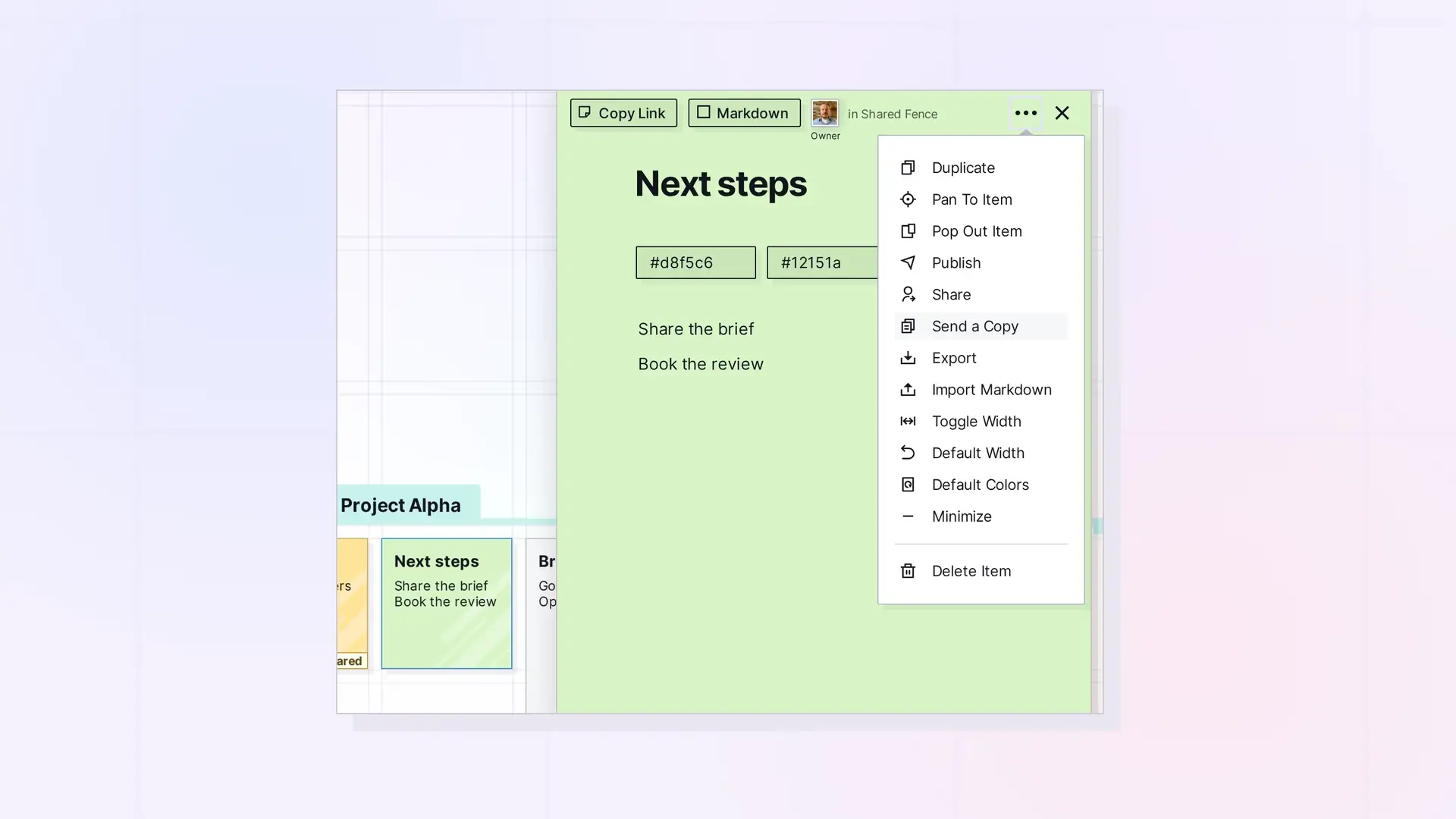
All three are in the item’s … menu: Share, Send a Copy, and Publish.
Next Steps
FAQ
Can I do more than one?
Yes. You can share an item, publish it, and send copies of it.
Why is Send a Copy missing on my binder?
Send a Copy is for single items. For a binder, use Duplicate to make your own copy, or share it. See Duplicate a Binder.

