

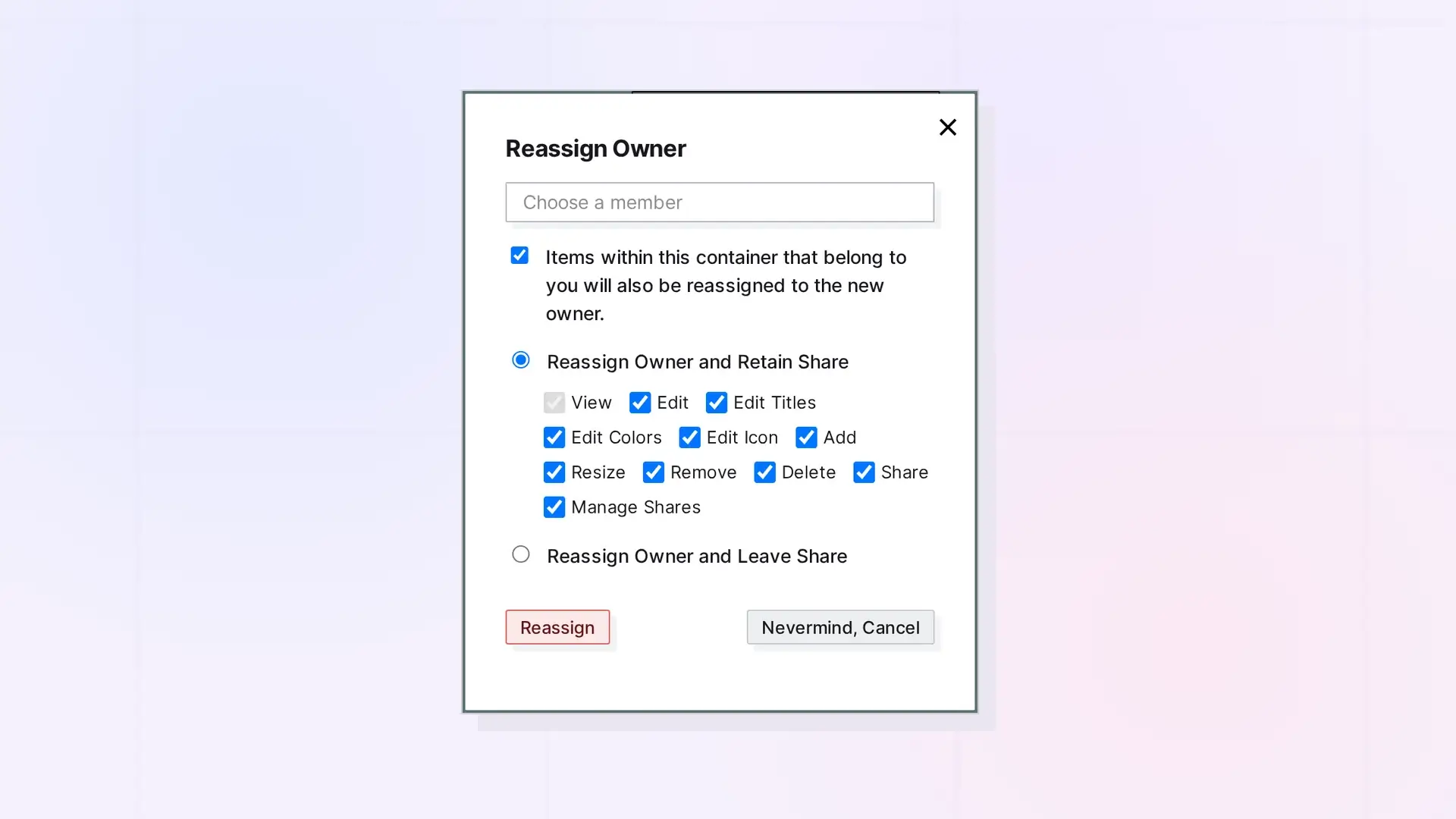
The owner of a shared item, binder, or fence can make one of the people it is shared with the new owner. Open the item’s side panel, click …, then click Share. On your owner entry under Item Owner, click Reassign. This is useful when you hand a project to a teammate or step away from a piece of work someone else will carry on.
Who Can Do It, and Who Can Receive It
- Only the current owner can reassign.
- The new owner must be a member: someone who has accepted the share. Pending invitations do not count.
- The Reassign button is in the item’s own Share panel, under Item Owner. It appears only on an item that is actively shared itself, and only once at least one person has accepted. It does not appear on an item that is shared only because it sits inside a shared fence or binder.
Reassign Ownership Step by Step
- Click the item’s title to open its side panel, click …, then click Share.
- Under Item Owner, find your owner entry and click Reassign. The Reassign Owner dialog opens.
- In Choose a member, pick the person who will become the owner. Only people who have accepted the share are listed.
- For a binder or fence, leave Items within this container that belong to you will also be reassigned to the new owner. checked to send your items inside along with it. It is checked by default.
- Choose Reassign Owner and Retain Share (the default) to keep access, or Reassign Owner and Leave Share to leave it entirely.
- If you keep access, check the permissions you want to keep. View is always on. Edit, Edit Titles, Edit Colors, Edit Icon, Add, Resize, Remove, Delete, Share, and Manage Shares are all checked by default.
- Click Reassign. To back out instead, click Nevermind, Cancel.
What Moves to the New Owner
- The item becomes theirs, and its files and image icon move into their storage.
- It stays where they already had it: their workspace and position, or the binder they had filed it in.
- The item’s other shares stay, now under the new owner. The new owner’s own share is removed, since they own it now.
- For a binder or fence, with the container checkbox on, your items inside go along, including nested binders and fences. A fence’s contents move with it to where the new owner has the fence. Items other people put in stay theirs.
- While the handoff is in progress, the item and everything it moves (a binder’s or fence’s contents) are locked for changes until it finishes. They can still be viewed.
Keeping Access After You Hand It Off
With Reassign Owner and Retain Share, you keep an accepted share of the item, in the same place, with the permissions you checked. With Reassign Owner and Leave Share, you leave it entirely. Your items inside that did not go along come back to you: out of a binder, or right where they are for a fence.
Published Pages
- Your published page of the item stays only if you keep a share that allows publishing.
- Your published pages of items that went along inside a binder or fence are taken down.
When a Handoff Is Refused
Nothing changes when a handoff is refused. That happens when:
- You are not the owner.
- The person has not accepted the share.
- Their storage does not have room for the files.
- A binder or fence stays shared (you keep access, or others have it) and their account’s plan does not include sharing fences and binders.
For Developers
The same handoff is available in the Opal REST API with POST /items/:id/reassign. See Reassign Owner API: Hand a Shared Item, Binder, or Fence to a Member.
Next Steps
- Share a fence first: Sharing a Fence: Give Others a Whole Zone of Your Desk
- Share a binder first: Share a Binder
- Sharing in Opal: What You Can Share and How It Works
- Use the API: Reassign Owner API: Hand a Shared Item, Binder, or Fence to a Member
- Delete a Workspace (and What Happens to Its Items)
FAQ
Can I hand off an item I do not own?
No. Only the current owner can reassign an item.
Why do I not see the Reassign button?
The Reassign button appears only on an item that is actively shared itself, in its Share panel under Item Owner, and only once someone has accepted the share. An item that is shared only because it sits inside a shared fence or binder does not show it. To hand off the whole container, open the Share panel of the fence or binder itself.
Why is the person I want not in the list?
Only members, people who have accepted the share, appear in Choose a member. Someone with a pending invitation has to accept it first.
Does the new owner’s storage need room?
Yes. The item’s files move into their storage. If there is not enough room, the handoff is refused and nothing changes.
What happens to other people who have it shared?
Their shares stay, now from the new owner.

