

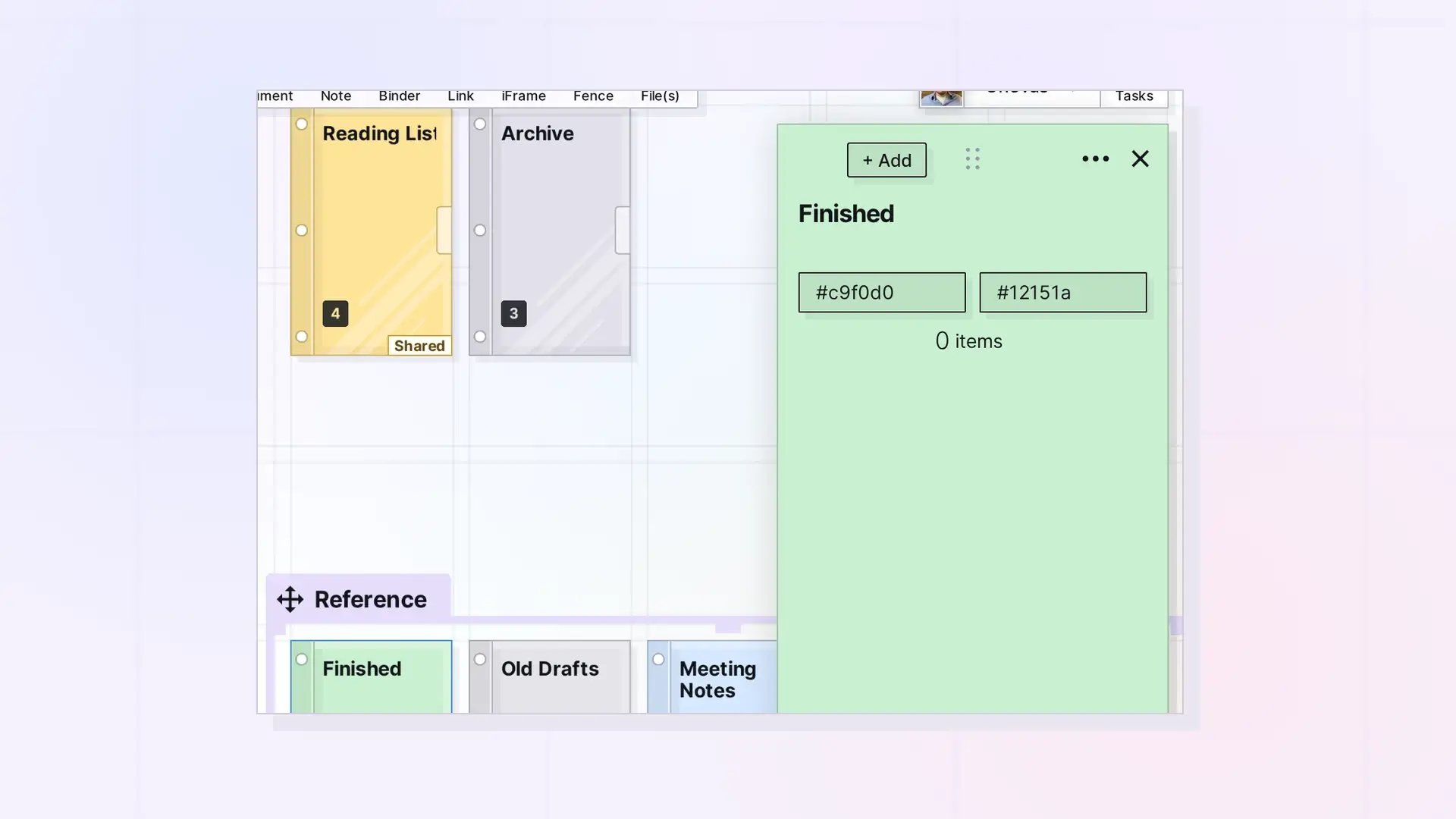
Everything about a binder’s look is in its panel. Click the binder to open it, then edit the title or description, pick its colors, or click the icon button to set an icon.
Rename a Binder
- Click the binder to open its panel.
- Click the title and type the new name.
- Edit the description the same way if you want.
Change a Binder’s Colors
- Click the binder to open its panel.
- Use the two color boxes in the panel’s header: one for the binder’s color and one for its text color.
For more on colors, see Change the Color of Notes, Binders, and Fences.
Set an Icon
- Click the binder to open its panel.
- Click the icon button (Set icon) and choose an icon.
Change Its Width on the Grid
Click … in the binder’s panel, then click Toggle Width to switch the binder between widths on the grid.
Shared Binders
Changing a shared binder’s title, colors, or icon changes them for everyone. People you share with need Edit Titles, Edit Colors, or Edit Icon. See Share Roles and Permissions Explained.
Next Steps
FAQ
Do the items in the binder change color too?
No. Each item keeps its own colors.
Can I set colors when I create a binder?
The New panel asks only for a title and description for binders. Set colors in the binder’s panel afterward.

