

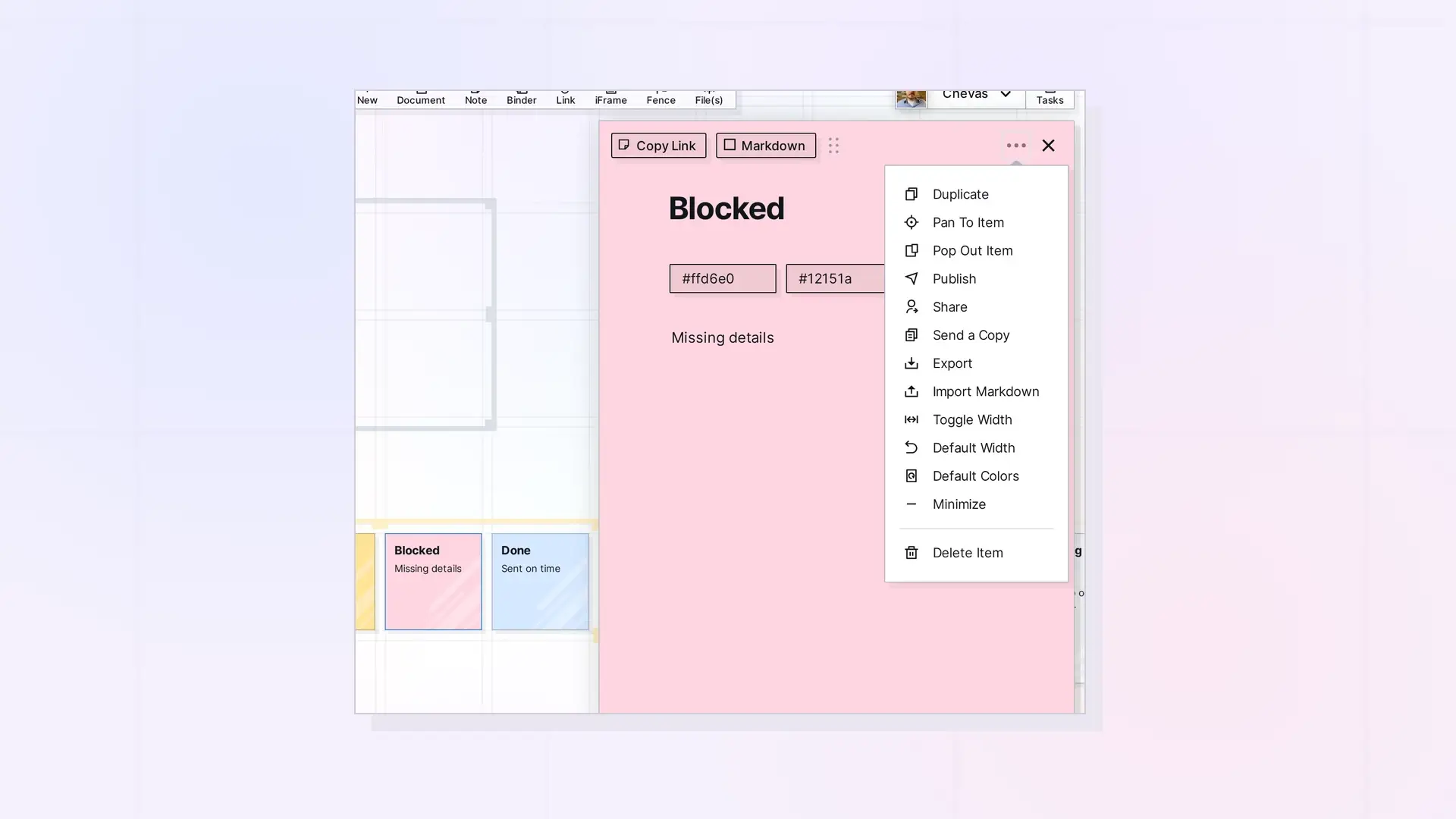
A note can be shared with other people, sent as a copy, or published as a public page. All three start from the note’s ••• menu.
Share a Note
Choose Share in the ••• menu, enter one or more email addresses, choose a role, and send the invite. The note stays linked: when either of you edits it, the other sees the change. See Share an Item Step by Step.
Send a Copy of a Note
Choose Send a Copy to give someone their own separate copy. Changes they make do not affect your note. See Send a Copy of an Item.
Publish a Note
Choose Publish to make the note viewable by anyone with the link. A published note is a snapshot, so use Re-publish to Update after you make changes. See Publish an Item.
Which One to Use
| You want to | Use |
|---|---|
| — | — |
| Work on the note together | Share |
| Give someone their own version | Send a Copy |
| Let anyone read it from a link | Publish |
See Share, Send a Copy, or Publish? Choosing the Right Option for more.
Next Steps
FAQ
Can people I share a note with change its color?
Only if their share includes Edit Colors. See Share Roles and Permissions Explained.
Does a published note update on its own?
No. A published note shows what it looked like when you published it. Click Re-publish to Update to refresh the public page.

