

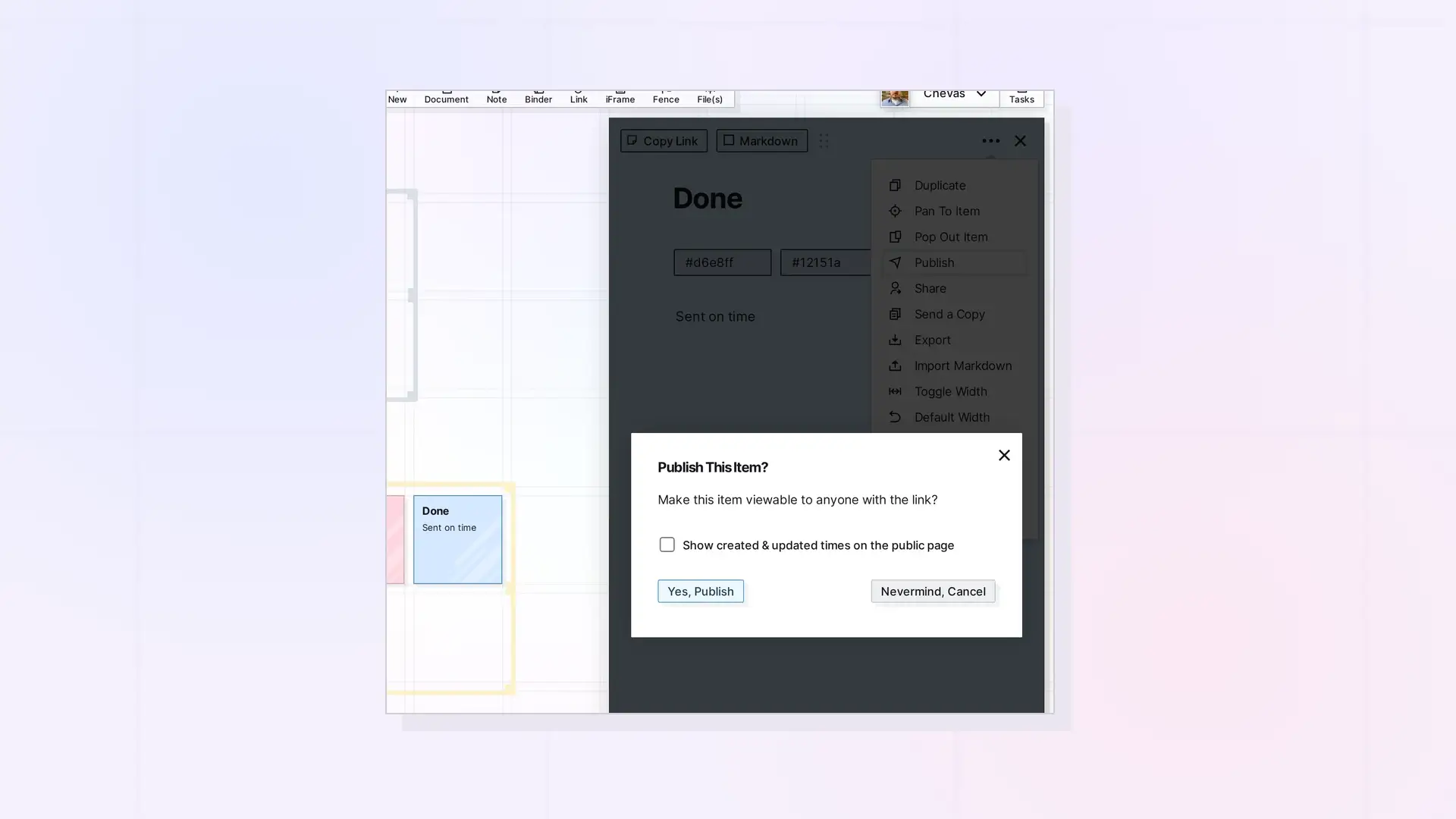
Publishing turns an item into a public, read-only page that anyone with the link can view, no Opal account needed. Open the item, click •••, click Publish, and click Yes, Publish. Then copy the public link and send it to anyone.
Publish an Item Step by Step
- Click the item on your workspace to open its page.
- Click ••• at the top right of the page.
- Click Publish. The Publish This Item? dialog asks: “Make this item viewable to anyone with the link?”
- Choose whether to check Show created & updated times on the public page. It is unchecked unless you check it.
- Click Yes, Publish, or Nevermind, Cancel to back out.
The dialog then shows Published with the public link. Click Copy Link to copy it.
Update the Public Page
The public page is a snapshot of the item when you published it. Edits you make afterward do not appear until you update it:
- Open the item and click •••, then Publish.
- Click Re-publish to Update.
Unpublish
Open Publish from the ••• menu again and click Unpublish. The public link stops working.
What You Can Publish
Documents, notes, link items, iFrames, and files can all be published by their owner. Fences and binders are published from their own menus. See Publish a Fence and Publish a Binder.
Next Steps
- Publish an Item Shared with You
- Share, Send a Copy, or Publish? Choosing the Right Option
- Publishing API: Publish, Refresh, Status, and Unpublish
FAQ
Do people need an Opal account to see a published item?
No. Anyone with the link can view it.
Can visitors edit a published item?
No. The public page is read-only.
Why don’t my latest edits show on the public page?
Click Re-publish to Update to refresh it.

