

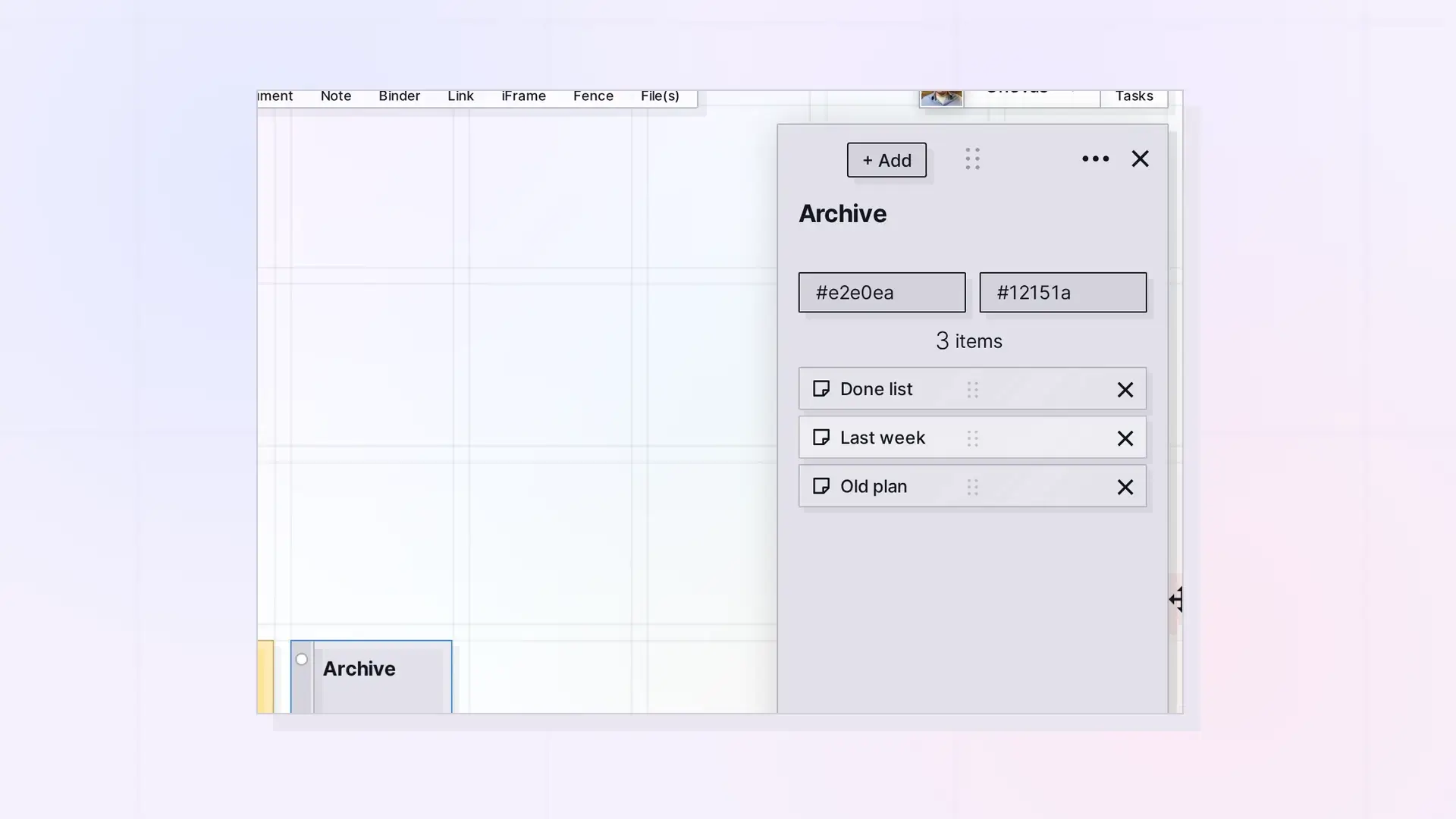
Taking an item out of a binder does not delete it. Open the binder’s panel and click the remove button (X) on the item’s row. The item leaves the binder and goes back onto your workspace near the binder.
Take an Item Out Step by Step
- Click the binder to open its panel.
- Find the item in the list.
- Click the X on the item’s row.
The item is taken out right away, with no confirmation, and placed on the workspace near the binder. Drag it wherever you want it.
Remove vs Delete
- Remove from the binder: the item still exists and goes back onto the grid.
- Delete the item: the item is gone. See Delete or Archive an Item in Opal (and Whether You Can Undo It).
Shared Binders
- Items you added to someone else’s binder are yours, and you can take them out.
- Taking out someone else’s item needs the Remove permission. Their item goes back to them, not to you.
See Share a Binder.
For Developers
Remove items from a binder with the Opal REST API. See Binders API: Add, Remove, Reorder, and Duplicate.
Next Steps
FAQ
Can I undo taking an item out?
Add it back. Drag it onto the binder, or use + Add in the binder’s panel.
Is there a confirmation?
No. The item is taken out as soon as you click X, but nothing is deleted.

