

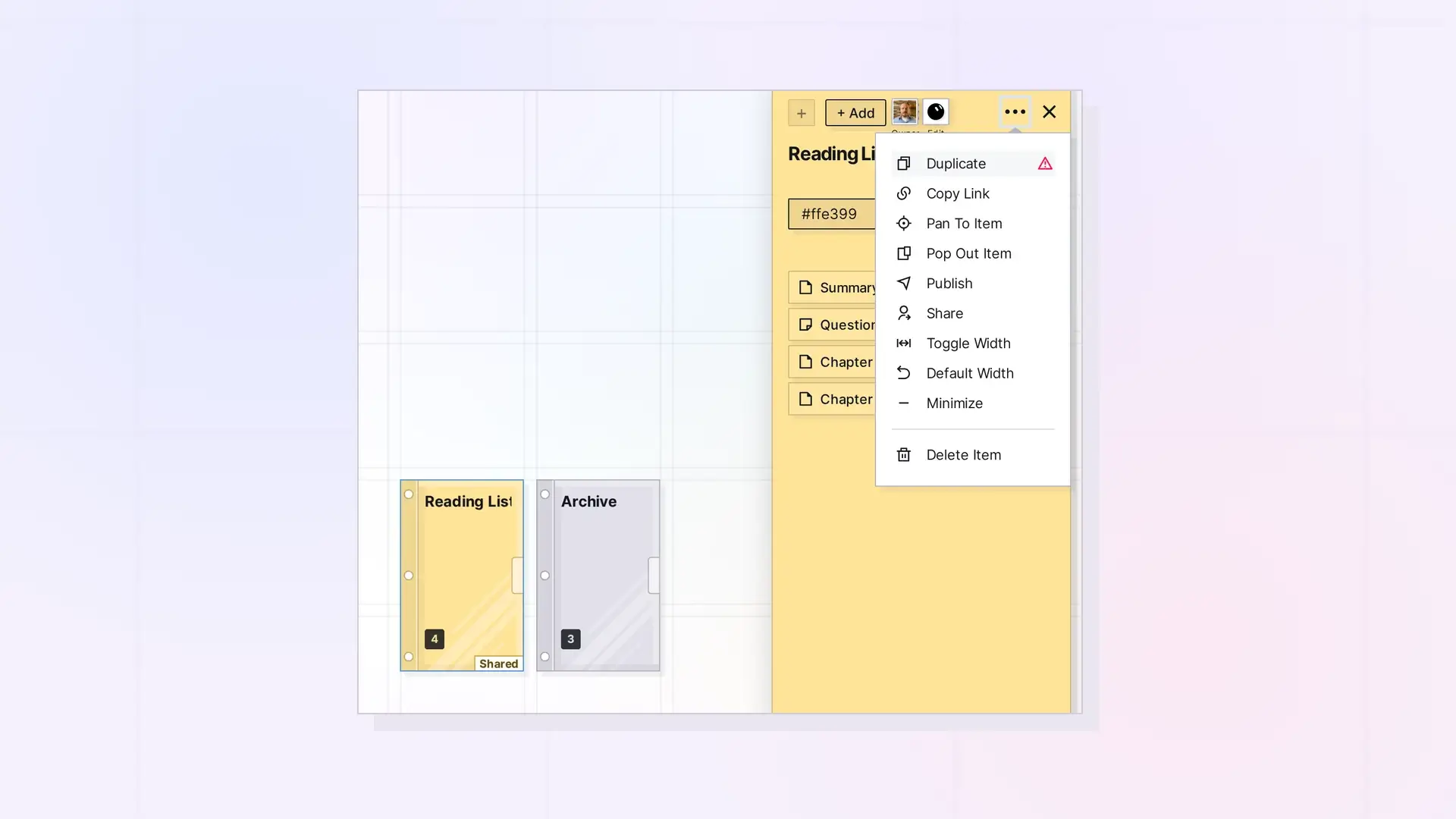
Duplicating a binder makes a new binder, titled “Copy of” plus the original title, with copies of your own items inside it. Open the binder’s panel, click …, then click Duplicate. The copy is placed slightly offset from the original.
Duplicate a Binder Step by Step
- Click the binder to open its panel.
- Click …, then click Duplicate.
- A new binder named “Copy of” plus the original title appears next to the original, with copies of your items inside.
Large binders are copied in the background. Opal lets you know when the copy is ready and how many items were copied.
What Is Copied
- Every item in the binder that you own, with its content and files.
- The copies are new, independent items. Changing them does not change the originals.
What Is Not Copied
- Items other people own, such as items someone added to your shared binder. They are skipped, and Opal tells you how many were skipped.
- Shares. The copy is not shared with anyone.
- Published state. The copy is not published.
Limits
Duplicating creates new items and copies files, so your plan’s item and storage limits are checked first. See File Size and Storage Limits by Plan: Workshop, Studio, and Day Desk.
For Developers
Duplicate a binder with the Opal REST API. See Binders API: Add, Remove, Reorder, and Duplicate.
Next Steps
- Rename, Color, and Set an Icon for a Binder
- Send a Copy of an Item
- Binder Limits: What Can and Cannot Go in a Binder
FAQ
Can I duplicate a binder someone shared with me?
No. Only the binder’s owner can duplicate it.
Can I duplicate a single item instead?
Yes. Use Duplicate in that item’s … menu, or select it and press Ctrl + D.

