

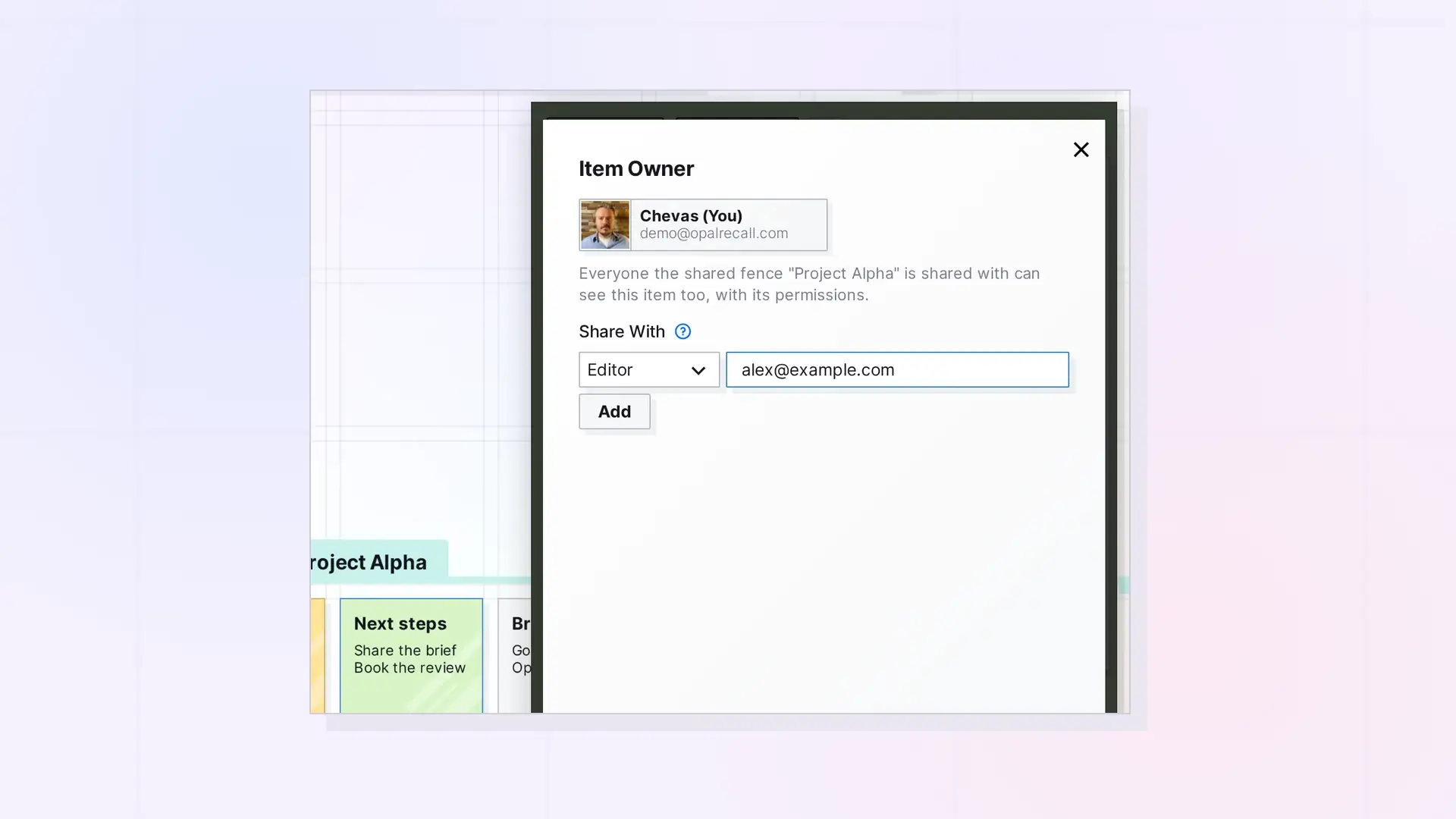
To share an item, open it, click …, then click Share. Choose a role under Share With, add one or more email addresses, and click Send Invite. The steps are the same for documents, notes, links, iFrames, files, binders, and fences.
Share an Item
- Open the item in its side panel.
- Click …, then click Share. The Share panel opens with you listed under Item Owner.
- Under Share With, choose a role from the dropdown: Viewer, Editor (the default), Contributor, Collaborator, Manager, or Custom.
- Type an email address in Enter Email(s), comma-separated. To invite several people, separate the addresses with commas.
- Click Add. The people you added appear under Not Yet Invited.
- Click Send Invite.
Each person gets a Shares notification and can accept or decline. People without an Opal account get an email inviting them to sign up.
Check Who Has Access
Open the Share panel again. The people you shared with are listed under headings that name their permissions, for example Can View, Edit. People who still need to create an account show (Pending Sign Up).
Help in the App
The ? next to Share With opens a short explanation of sharing right in the panel.
For Developers
Share with the Opal REST API using POST /shares. See Sharing API: Shares, Permissions, and Recipient Placement.
Next Steps
FAQ
Can I change someone’s permissions later?
Yes. As the owner, open the Share panel, change the checkboxes on their entry, and click Save. See Change Someone’s Permissions or Stop Sharing.
Can I share something that was shared with me?
Only if its owner gave you the Share permission. See Share Onward: Re-share an Item Shared with You.
What do they see before accepting?
A request in their Shares panel with your name, the item’s title, and the role you chose.

