

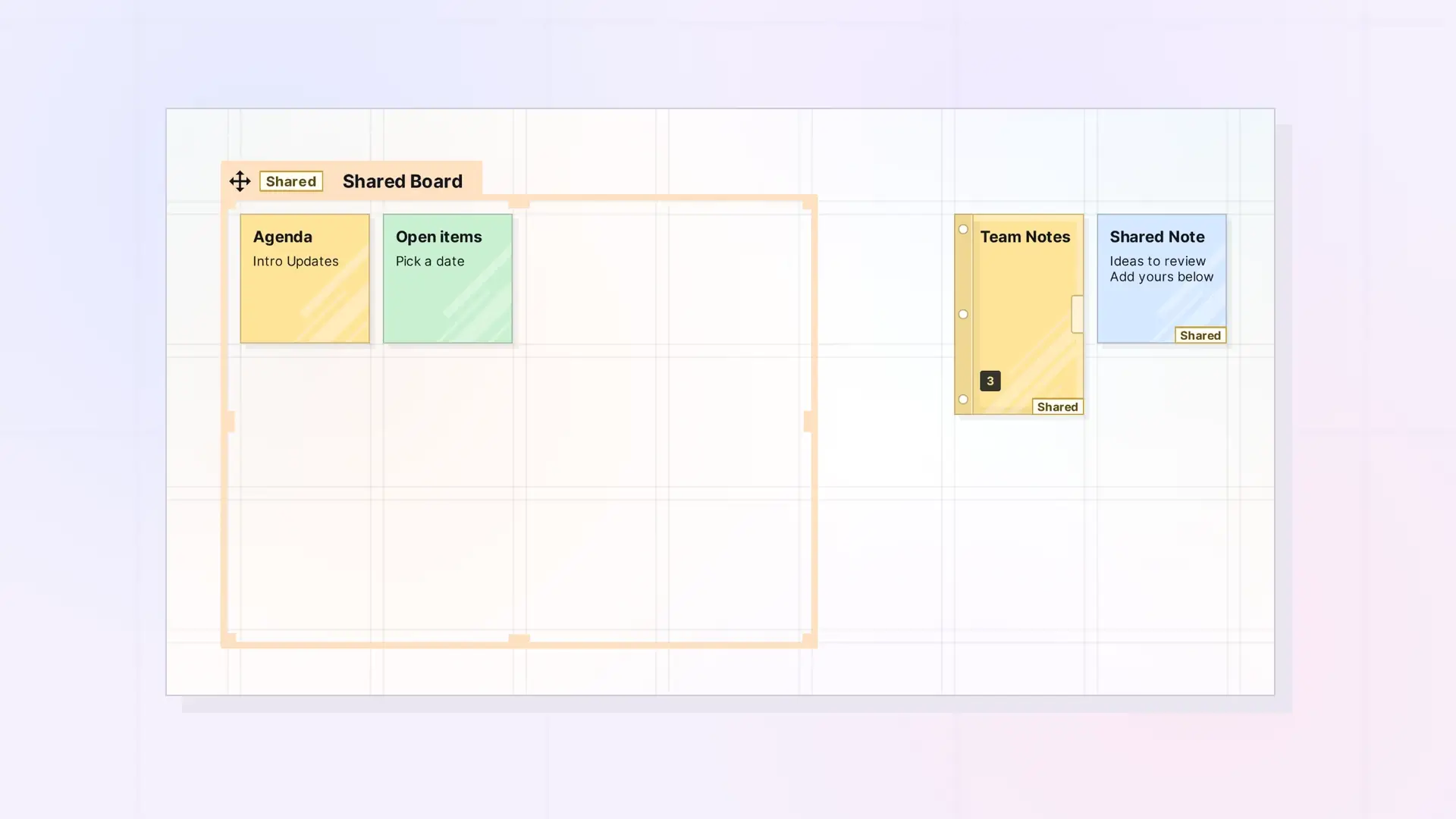
An item someone shares with you lands in your Inbox when you accept it. From there, place it wherever you like: on any of your workspaces, or in one of your binders. Your placement is your own and does not move anything on the owner’s desk.
Place a Shared Item
- Click Inbox in the toolbar, or press Ctrl + I.
- Move the shared item from your Inbox onto one of your workspaces.
- Position it like any of your own items.
File a Shared Item in a Binder
Drag a shared item onto one of your binders and click Add to Binder. It is listed in your binder for you only. See Add Items to a Binder.
Shared Binders and Fences
A shared binder or fence arrives with everything inside it. Place your copy of the container anywhere. The contents and, for a fence, the layout inside, are the same for everyone.
Moving a Shared Item to Another Workspace
Move it the same way you move your own items. See Move Items Between Workspaces.
Next Steps
- Accept or Decline Something Shared with You
- Edit Together in Real Time
- Working in a Fence Someone Shared with You
FAQ
If I move a shared item, does it move for the owner?
No. Where you place it is your own choice and does not change anyone else’s desk.
Can I tell which items are shared with me?
Open the item’s Share panel. It shows the owner under Item Owner and your access. Items you see through a shared binder or fence say so, for example “You see this item through the shared binder”, with the binder’s name.

