

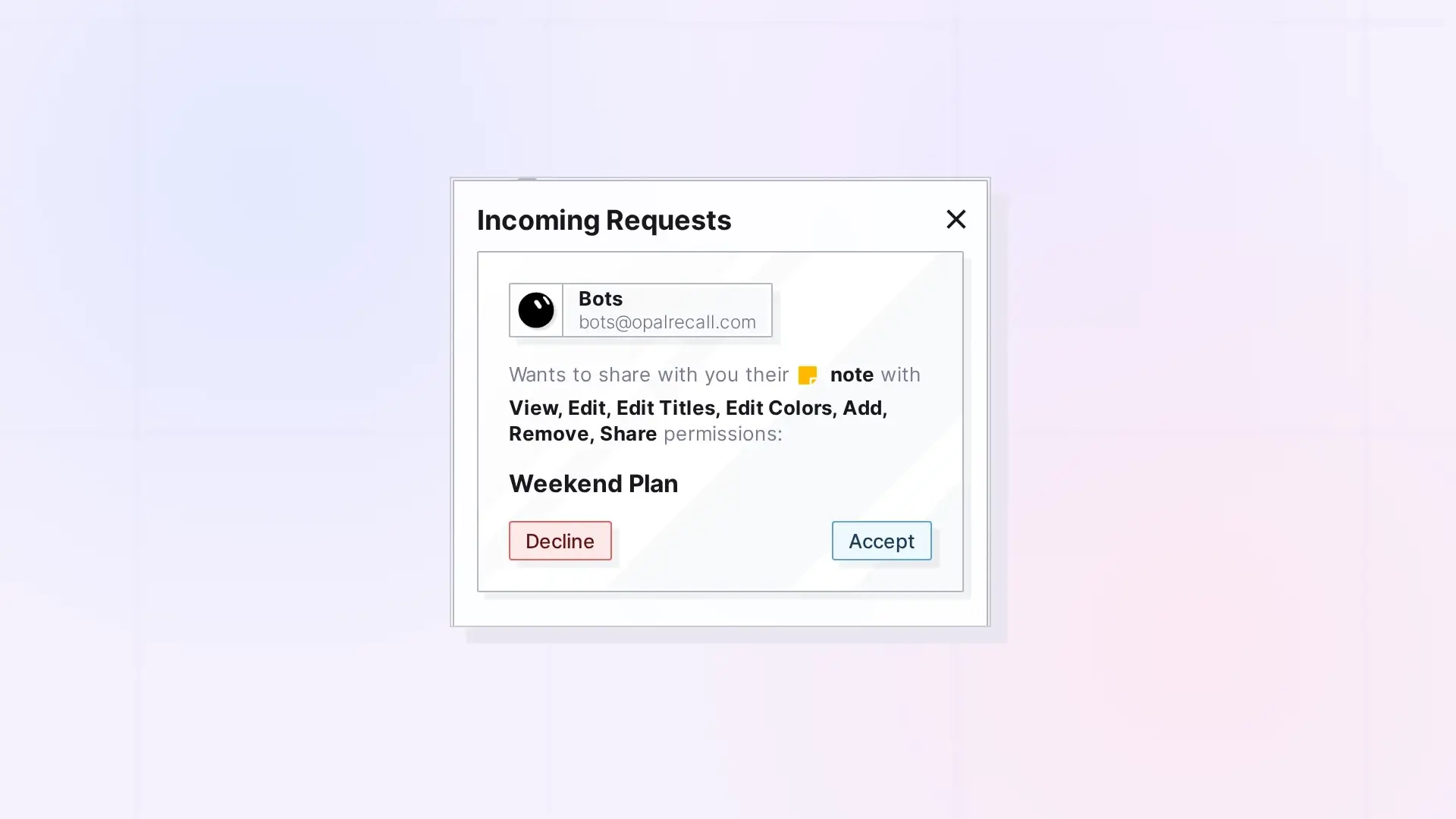
When someone shares with you, you get a Shares notification. Open Shares in the top-left toolbar, find the request under Incoming Requests, and click Accept or Decline. Accepted items land in your Inbox, ready to place on a workspace.
Accept a Share
- Open Shares in the top-left toolbar.
- Under Incoming Requests, each request tells you who is sharing, what kind of item it is, how many items it includes, and the role they gave you.
- Click Accept.
- The item lands in your Inbox. Drag it onto one of your workspaces. See Where Shared Items Live on Your Desk.
Decline a Share
Click Decline on the request. Nothing is added to your account.
The Shares Panel
- Incoming Requests: shares waiting for your answer.
- Incoming Copies: copies someone sent you. See Send a Copy of an Item.
- Active Shares: shares you have accepted.
Shared Binders and Fences That Hold Items You Already Have
If a binder or fence includes items you already have on your own, Opal tells you: “One or more of the items in this container is already in your account on one of your workspaces.” Choose:
- Leave them where they are: each stays where you have it, and the container does not show it to you.
- Move them to this container: each shows inside the container only.
Then click Confirm. Your choice also applies to items put in the container later.
When You Cannot Accept
- Accepting a shared binder or fence needs a Studio or Workshop plan.
- Everything you accept counts toward your plan’s item limit. If you are out of room, Opal shows “Upgrade your account to accept additional content items.” See Shared Items and Your Plan Limits.
Next Steps
- Where Shared Items Live on Your Desk
- Edit Together in Real Time
- Leave Something That Was Shared with You
FAQ
Can I accept a share later?
Yes. The request stays under Incoming Requests until you answer it.
Does declining tell the other person?
The share is not added to your account. The owner can share again if you change your mind.
Can I change my mind after accepting?
Yes. Leave the share any time. See Leave Something That Was Shared with You.

