

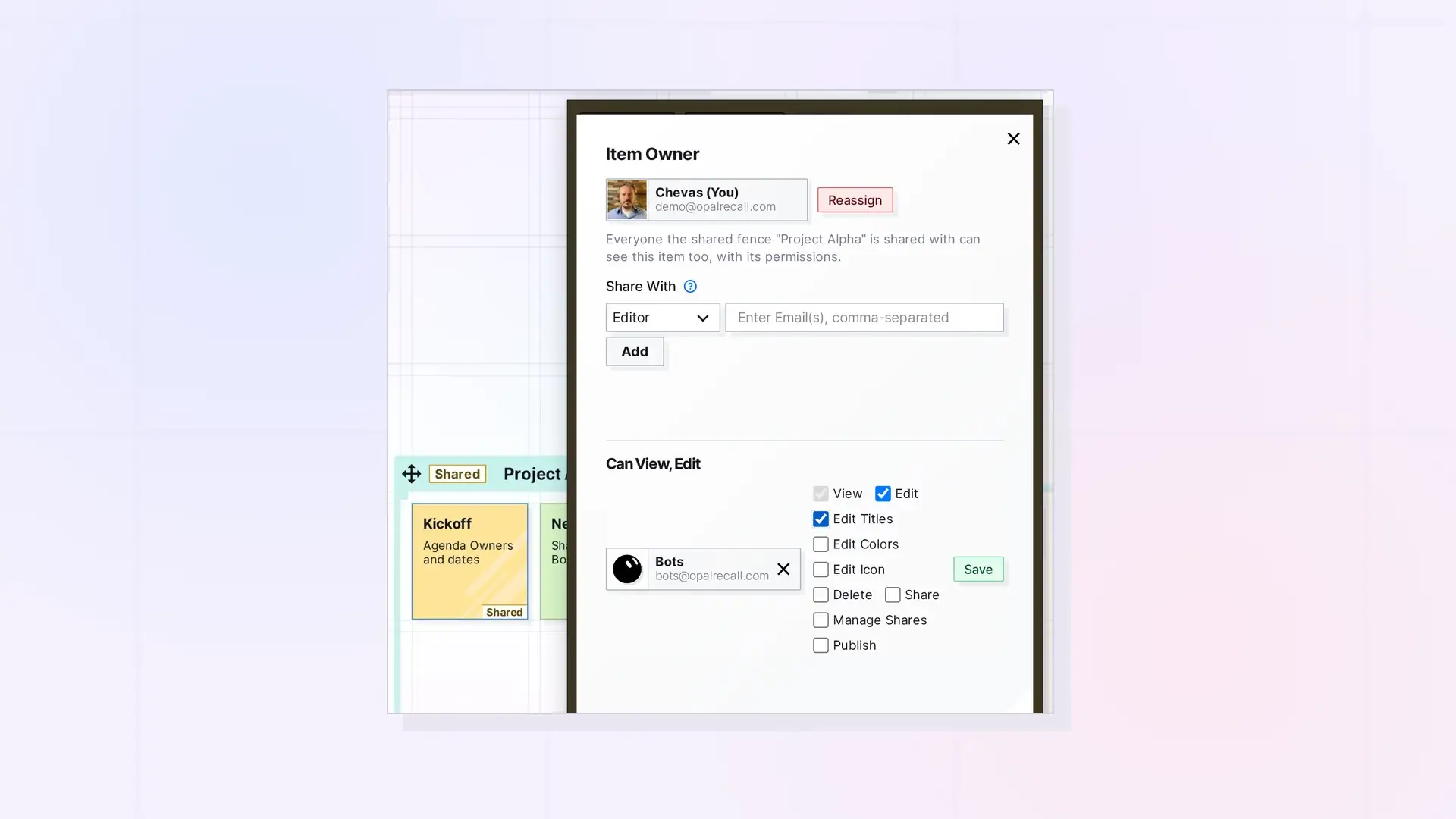
As the owner, you manage everyone’s access from the item’s Share panel. Change a person’s permissions with the checkboxes on their entry and click Save, or remove them with the remove button (X) to stop sharing with them.
Change Someone’s Permissions
- Open the item, click …, then click Share.
- Find the person. People are grouped under headings that name their permissions, for example Can View, Edit.
- Check or uncheck permissions on their entry.
- Click Save.
Only the owner can change permissions.
Stop Sharing with Someone
- Open the Share panel.
- Click the X on the person’s entry.
The share is removed right away and Opal shows “Share removed successfully”. The other person gets a message that their access to the item has been revoked.
Withdraw a Pending Invitation
People who have not accepted yet, including (Pending Sign Up) invitees, are removed the same way: click the X on their entry.
Binders and Fences
- When you remove someone from a shared binder or fence, the items they put in it go back to them, unless Assume delete capabilities and ownership of items of removed participants is on. Then those items become yours.
- People with Manage Shares on a shared binder or fence can also remove people.
See Share a Binder and Sharing a Fence: Give Others a Whole Zone of Your Desk.
Stop Sharing with Everyone
Remove each person from the Share panel. To keep the item but hand it to someone else instead, see Reassigning Ownership of Shared Items and Containers.
Next Steps
- Share Roles and Permissions Explained
- Leave Something That Was Shared with You
- What Happens to Shared Items When They Are Deleted
FAQ
Is there a confirmation when I remove someone?
No. The share is removed as soon as you click X.
Does removing someone delete anything of mine?
No. Your item stays as it is. Only their access ends.

