

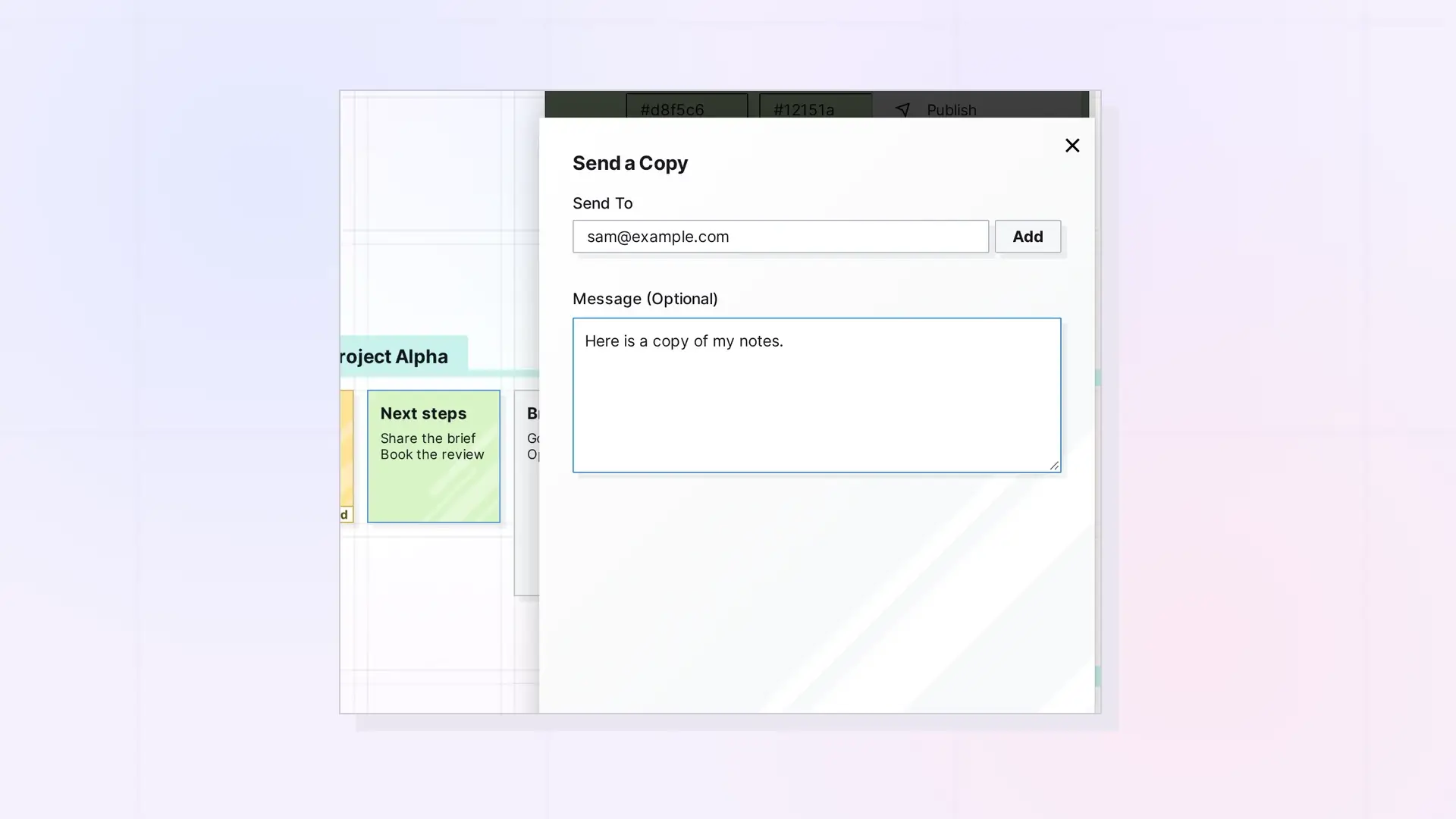
Send a Copy gives someone their own independent copy of a document, note, link, iFrame, or file. Open the item, click …, then click Send a Copy. Once they accept, the copy is theirs: changes they make do not touch your original, and changes you make do not reach their copy.
Send a Copy Step by Step
- Open the item.
- Click …, then click Send a Copy.
- Under Send To, type an email address in Enter Email and click Add. Repeat to send to more people. They appear under Not Yet Sent.
- Optionally, type a note in Message (Optional).
- Click Send Copy.
Accept a Copy
The recipient opens Shares in the toolbar. Copies are listed under Incoming Copies with your name, the item’s title, and your message. They click Accept to get the copy or Decline to turn it down.
What You Can Copy
Documents, notes, links, iFrames, and files that you own. Binders and fences cannot be sent as copies. Someone without an Opal account gets an email inviting them to sign up.
For Developers
Send and accept copies with the Opal REST API. See Copies API: Send, Accept, and Decline Independent Copies.
Next Steps
- Share, Send a Copy, or Publish? Choosing the Right Option
- Share an Item Step by Step
- Duplicate a Binder
FAQ
Does the copy count toward their item limit?
Yes. Once accepted, the copy is their own item.
Can I take a copy back?
No. Once accepted, the copy belongs to them.

