

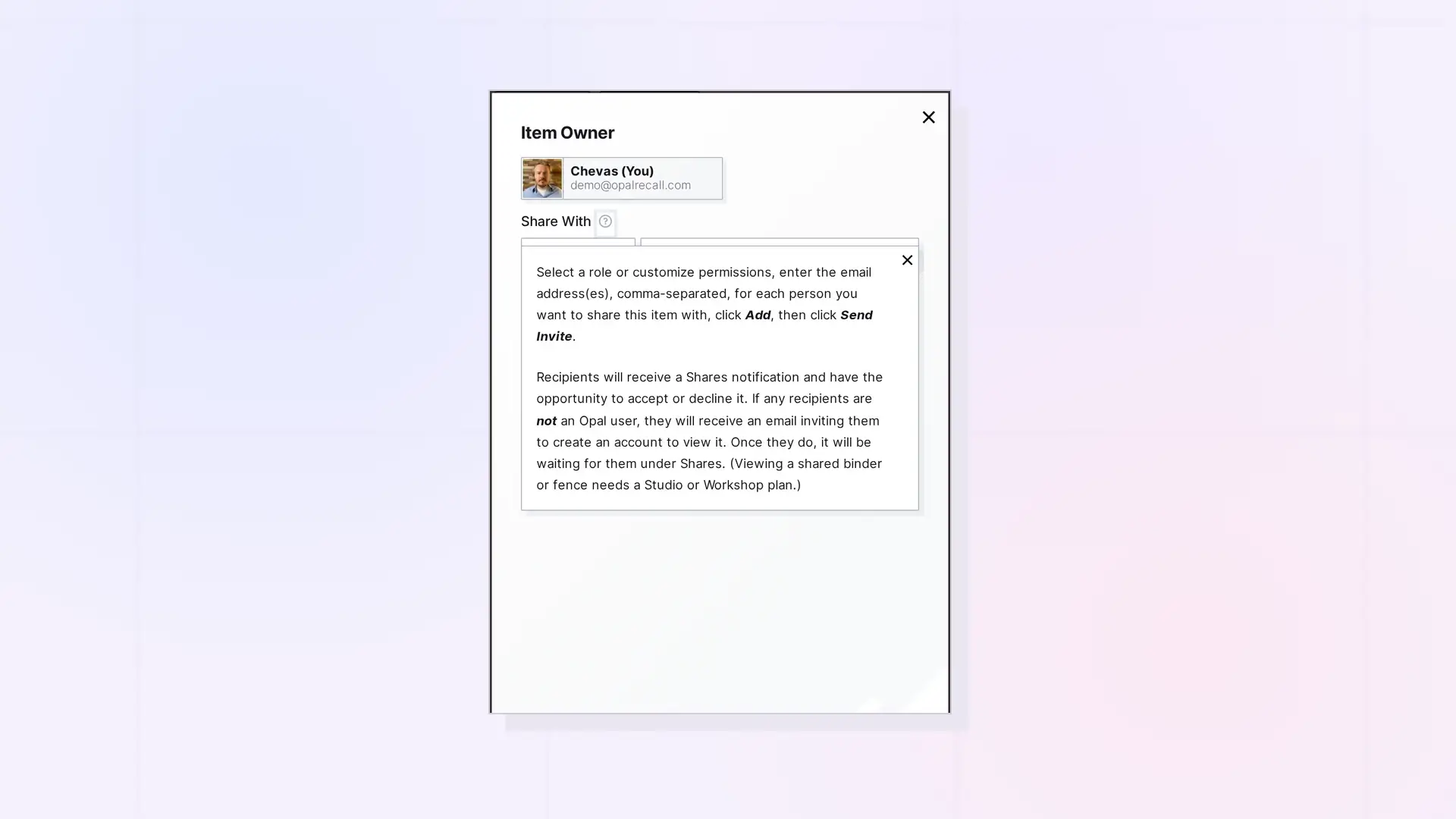
You can share with anyone by email, even if they do not use Opal yet. They get an email inviting them to create an account. Until they sign up, they show as (Pending Sign Up) in the item’s Share panel.
Invite Someone New
- Open the item, click …, then click Share.
- Choose a role under Share With.
- Type their email in Enter Email(s), comma-separated and click Add.
- Click Send Invite.
They get an email asking them to create an account. Once they sign up, the share waits for them to accept.
Pending Sign Up
In the Share panel, people who have not signed up yet show (Pending Sign Up) next to their entry. You can remove them like anyone else. See Change Someone’s Permissions or Stop Sharing.
Want Anyone to See It Without an Account?
Publish it instead. A published item or container is viewable by anyone with the link, no account needed. See Share, Send a Copy, or Publish? Choosing the Right Option.
Next Steps
- Share an Item Step by Step
- Accept or Decline Something Shared with You
- What is Opal and How to Register
FAQ
Do they need a paid plan?
Viewing a shared binder or fence needs a Studio or Workshop plan. Shared single items count toward their plan’s item limit. See Shared Items and Your Plan Limits.
Can I withdraw an invitation before they sign up?
Yes. Remove their (Pending Sign Up) entry in the Share panel.

