

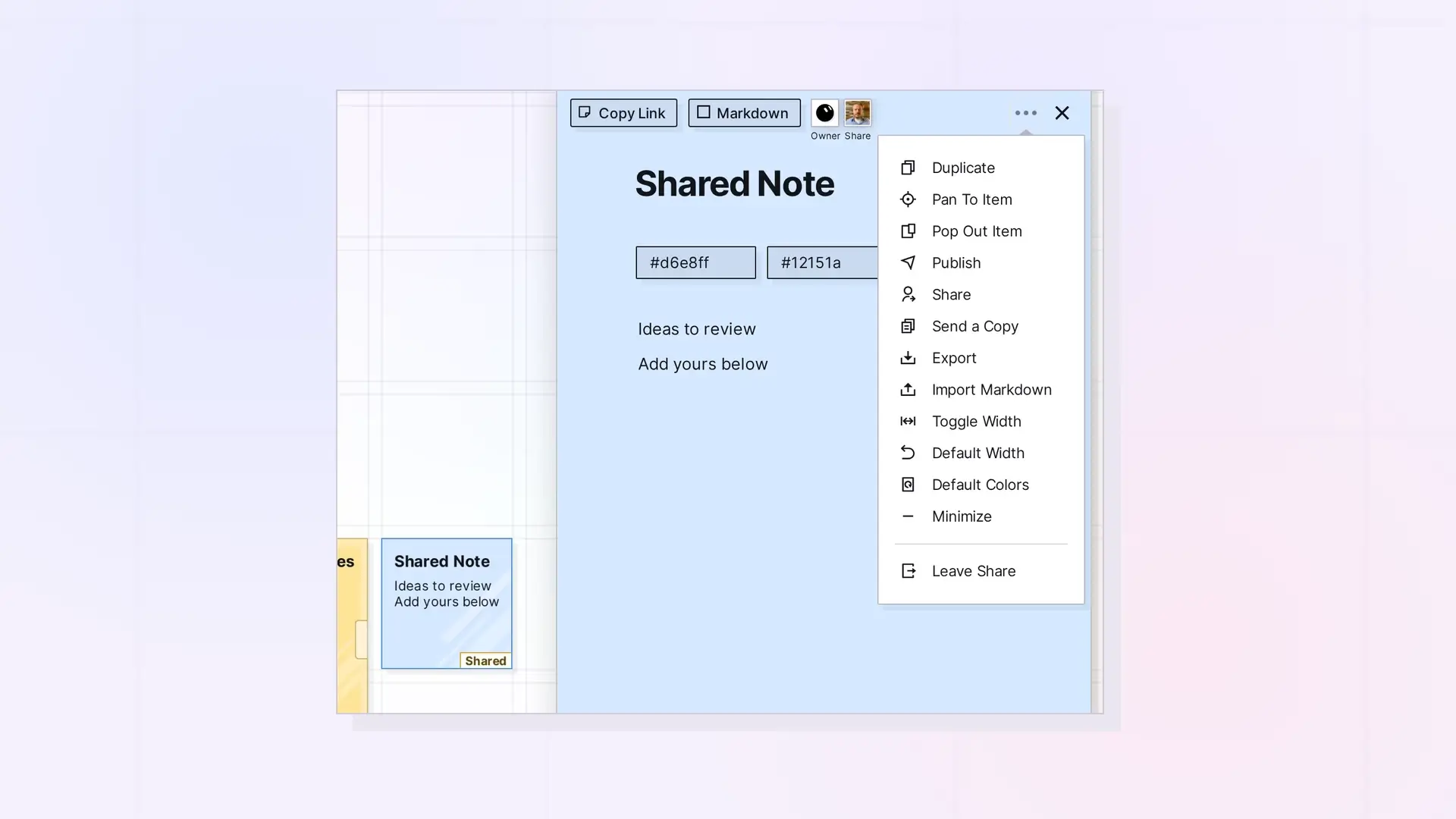
When you no longer need something that was shared with you, leave the share. Open the item, click …, then click Leave Share. It disappears from your desk, and the owner’s item is not affected.
Leave a Share
- Open the shared item, binder, or fence.
- Click …, then click Leave Share.
You can also open the item’s Share panel and click the X on your own entry.
What Happens to Items You Added
- Shared binder: the items you put in it go back to you, out of the binder.
- Shared fence: your items leave the fence and land just outside where your copy of the fence was, or in your Inbox.
If the owner turned on Assume delete capabilities and ownership of items of removed participants, your items become the owner’s instead and stay in the binder or fence.
Leave or Delete?
If the owner gave you the Delete permission on a single item, the … menu shows Delete Item too. Deleting removes the item for everyone. Leaving only removes it from your desk. When in doubt, leave. See What Happens to Shared Items When They Are Deleted.
Next Steps
- Accept or Decline Something Shared with You
- Working in a Fence Someone Shared with You
- Working in a Binder Someone Shared with You
FAQ
Can I rejoin after leaving?
Ask the owner to share it with you again.
Does the owner know I left?
You are no longer listed in their Share panel.

